
Help Center
Get started
How to Prepare Your Subnet in RIPE Before Listing on IPbnb
Before you can list your subnet on IPbnb, a few things need to be in place on the RIPE side.
10
min.
Reading time
Beginner
Complexity level
Table of Contents
item
Before your subnet can be listed on IPbnb, a few things need to be in place on the RIPE side. This guide covers checking your address status, confirming that your subnet qualifies, clearing the range of previous use, and creating the inetnum object that our automated verification will check.
If you haven't registered yet, start with Creating your account and Completing verification. Once your subnet is ready, continue to How to add a subnet listing on IPbnb.
What you'll need
Access to the RIPE Database for your block — either through the LIR Portal (RIPE NCC members) or with your own maintainer credentials
Your two-factor authentication app
Access to the abuse-mailbox address of your RIPE organisation object
The exact range you intend to lease, confirmed as free of current use
Understanding RIPE requirements
Address status: PA, legacy, and PI
Your addresses must have ALLOCATED PA or LEGACY status to be listed on IPbnb.
ALLOCATED PA blocks can be sub-allocated and leased to others under RIPE policy. This is the status of a standard IPv4 allocation held by a RIPE NCC member.
LEGACY addresses were distributed before the current Regional Internet Registry system was established, so RIPE's allocation policies apply to them only in a limited way. They can be leased through IPbnb, with the specifics covered below.
ASSIGNED PI addresses may only be used by the organisation they are assigned to. Sub-assigning them breaches RIPE policy and can lead to the RIPE NCC deregistering the assignment, so IPbnb does not accept PI space.
Two further cases fall outside the standard process. If your object has ASSIGNED PA status, it is an assignment made to you by an LIR rather than an allocation, and no child object can be created beneath it. If it already has SUB-ALLOCATED PA status, it sits below someone else's allocation. In both cases, contact us at support@ipbnb.com before making any changes and we will review the options with you.
You can check your status in the My Resources section of the LIR Portal, or in the status: field of your inetnum object in the RIPE Database.
Where to find PA, LEGACY or PI status in a RIPE inetnum object:

Subnet size: what IPbnb accepts
The smallest subnet you can list is a /24, containing 256 IPv4 addresses. Larger blocks such as /23, /22 and /21 are also accepted.
For the standard listing process, the subnet you list must have its own inetnum object below your parent block. This limits IPbnb's database permissions to the listed subnet while you keep control of the parent.
What "more specific" means
A more-specific object covers a smaller part of the parent block and has a longer prefix - that is, a higher number after the slash.
Suppose you hold a /21 containing 2,048 addresses and want to lease half of it:
Parent block: /21 - 2,048 addresses
Portion being leased: /22 - 1,024 addresses
Before listing the /22, create a separate /22 inetnum object covering that exact range. IPbnb manages only this child object for the duration of the lease. The /21 parent object stays under your control.
The same approach works for other portions: a /23 parent can contain two separate /24 objects.
If your entire block is a /24
A standalone /24 is already the smallest block we accept, and you cannot create another /24 below it. It therefore cannot go through the standard automated process, whether its status is ALLOCATED PA or LEGACY.
Listing may still be possible after an individual review. Write to support@ipbnb.com and our team will check the block and explain the required setup.
Do not add IPBNB-MNT to your existing /24 object before you hear from us.
Legacy address space: what's different
If your block has LEGACY status rather than ALLOCATED PA, three points apply.
Every object inside a legacy block also has LEGACY status. It cannot be set to SUB-ALLOCATED PA or any other PA status. When you create the object for the addresses you want to lease, use LEGACY if the form asks for a status; the RIPE Database will also apply or correct this value automatically.
Do not list your top-level legacy object. That object represents the complete legacy block registered to your organization, and IPbnb does not accept it directly. Although it is technically possible to add IPBNB-MNT to it, doing so would grant access at the top of the legacy hierarchy. A maintainer configuration error at that level could affect your control over the entire block and may require the RIPE NCC's assistance to correct.
How to identify the top-level legacy object. Open the object in the RIPE Database and check its mnt-by: fields. If one of them reads:
mnt-by: RIPE-NCC-LEGACY-MNT
treat it as the top-level legacy object. Create a more-specific object for the portion you want to lease and add IPbnb's maintainer to that child object only, following Step 4B below.
Step 1: Confirm your access and address status
How you work in the RIPE Database depends on whether your organization is a RIPE NCC member.
If you are a member (an LIR):
Go to https://access.ripe.net/
Log in with your email and password, then confirm with the one-time code from your authentication app
Open the LIR Portal from the top menu
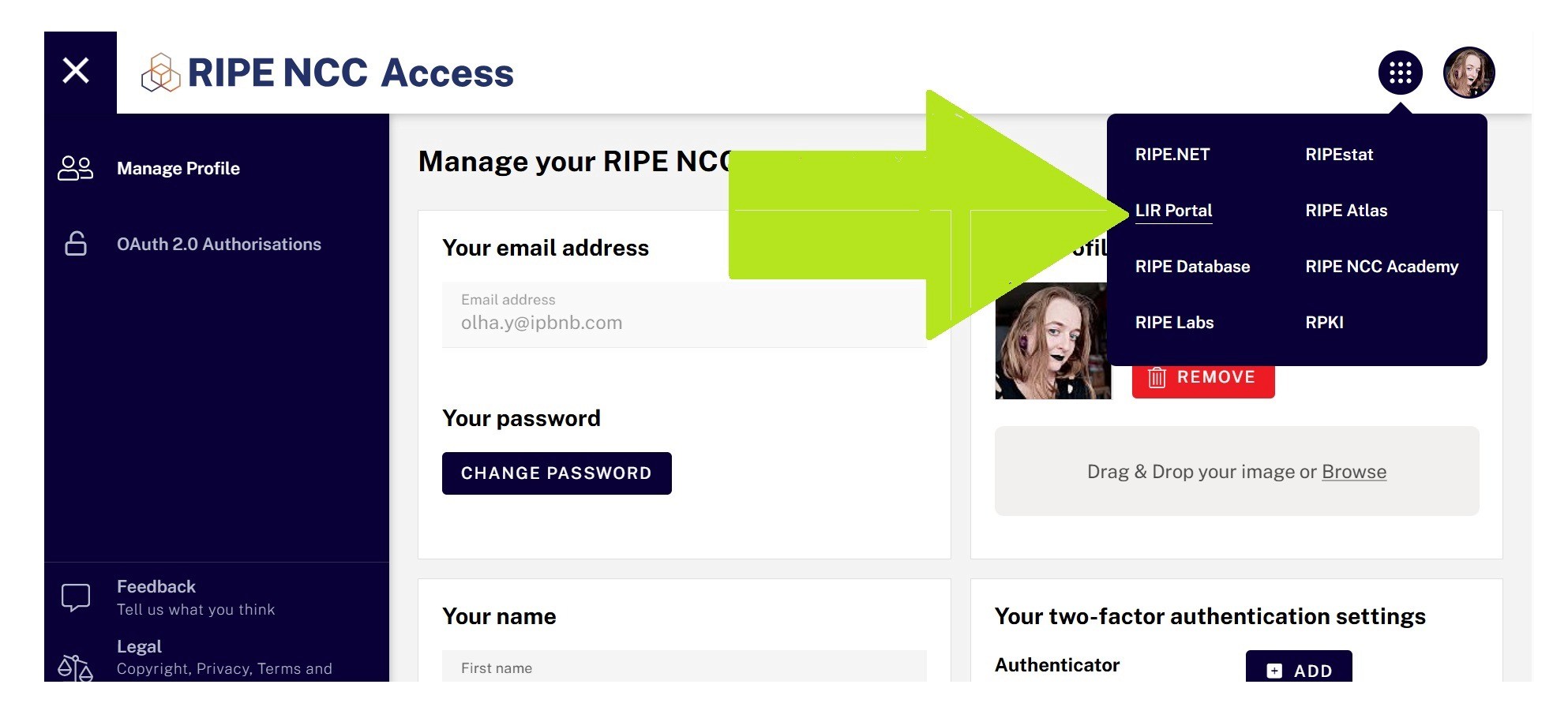
Open the My Resources tab

If you are not a member - which is the case for most legacy owners and for end users with a sponsoring LIR - you will not have LIR Portal access. Work directly in the RIPE Database at https://apps.db.ripe.net/db-web-ui/ using your own maintainer credentials.
Confirm the status of your block before going further, and check it against the scenarios in Step 3.
Step 2: Clear the range of previous use
Leftover records from previous use are the single most common cause of failed verification. Do this before you create any new object, and check the exact range you plan to lease rather than the parent block as a whole.
In the RIPE Database, remove records tied to the listed range:
More-specific inetnum objects inside the range
Old route objects
Old reverse DNS domain objects
Any other records left by previous users or services
Remove only what belongs to the range you are preparing. Do not delete the parent block or records covering addresses outside the listing.
In RPKI, remove or update any ROA that authorises an old ASN to originate the subnet. Check also for a broader ROA covering the subnet: if it protects other addresses in your parent block, do not remove it before reviewing the effect on those addresses. Contact us if you are unsure whether a covering ROA needs to change. Allow several hours after any RPKI change for validators to pick it up.
In BGP, confirm that the subnet is no longer announced from its previous ASN. Check whether it is still covered by a larger active aggregate, and do not withdraw a parent announcement before confirming that the change will not interrupt routing for other addresses. If the subnet remains visible only as part of a larger announcement, contact us before proceeding.
In your own infrastructure, make sure no servers, customers, DNS services, tunnels or other services still depend on the subnet.
Check IP reputation. Verify that the range is not listed on major blocklists - Spamhaus, Cisco Talos and a multi-list checker such as MXToolbox will cover most cases.
Step 3: Choose your scenario
Use the path that matches the status of your parent block.
Your parent block | What to do | Status of the new object |
ALLOCATED PA, larger than /24 | Go to Step 4A | SUB-ALLOCATED PA |
LEGACY, larger than /24 | Go to Step 4B | LEGACY |
A /24 of any status | Contact support before making changes | Reviewed individually |
ASSIGNED PA, SUB-ALLOCATED PA or ASSIGNED PI | Contact support before making changes | Reviewed individually |
"Larger than /24" means a /23, /22, /21 or any block containing more addresses.
Both standard paths finish with Step 5, where you add IPBNB-MNT to the object you have created.
Step 4A: Create the child object for PA address space
Why this step is required
IPbnb needs to manage the portion of your allocation being leased without receiving permissions over the complete parent block. A more-specific inetnum object covering only the addresses you want to list provides that separation. If your parent block is a /21 and you want to lease half of it, you create a /22 object for that portion.
Creating the object
In the LIR Portal, go to RIPE Database → Resources → My Resources → Create assignment. The form is labelled "Create assignment", but you will change the status value below.

Fill in the required fields:
inetnum - your subnet in CIDR format, for example
95.111.152.0/22. The prefix must be longer than the parent's (a /22 below a /21), and the range must fall inside the parent block.netname - any name that begins with a letter and contains only Latin letters, digits, hyphens or underscores, with no spaces. Example:
IPBNB-LEASE-BLOCK-1country - the two-letter country code for the block, for example NL, DE or FR
admin-c - administrative contact, chosen from your existing contacts
tech-c - technical contact, chosen from your existing contacts
status - SUB-ALLOCATED PA. This is the critical field. It allows IPbnb to manage the subnet while you retain the block. Verification fails without this exact status.
Example inetnum object with status SUB-ALLOCATED PA:

Then add two optional fields using the + button:
org - your RIPE organisation code. You must have access to the abuse-mailbox address of this organisation, because our verification messages are sent there.
abuse-c - enter
am34346, IPbnb's abuse contact. Adding it directly to the inetnum object routes abuse reports for the listed subnet to IPbnb rather than to the abuse contact inherited from your organisation or parent object. This affects abuse reports only; verification messages still reach the abuse-mailbox of the organisation in theorg:field.
Enter am34346 in lowercase. RIPE identifiers are generally case-insensitive, but owners working through this form have repeatedly run into validation errors after entering AM34346. Lowercase avoids the problem.
Adding abuse-c am34346 to an inetnum object:


Keep your own maintainer in the mnt-by: field and do not add IPBNB-MNT at this stage. Submit the object with your own maintainer only. Wait for RIPE to confirm that it was created successfully, then continue to Step 5.
Step 4B: Create the child object for legacy address space
Why this step is required
IPbnb manages a dedicated child object rather than your top-level legacy object. This limits IPbnb's permissions to the portion being leased and protects the rest of your legacy block.
Before you begin, confirm which object is the top-level one by checking its mnt-by: fields for RIPE-NCC-LEGACY-MNT, as described above. Do not add IPBNB-MNT to that object and do not use it for a standard listing.
Creating the object
Create a more-specific inetnum object covering only the portion you want to lease, protected at this stage by your own maintainer.
Complete the same fields as in Step 4A, with one difference:
status - LEGACY. Every object created inside a legacy block receives LEGACY status and cannot use SUB-ALLOCATED PA. The RIPE Database may apply or correct this value automatically.
Also add:
org - your RIPE organisation ID
abuse-c -
am34346mnt-by - your own maintainer only at this stage
Enter am34346 in lowercase. As in the PA path, uppercase entry has caused validation errors for owners in practice.
Submit the object and wait for RIPE to confirm that it was created successfully, then continue to Step 5.
Step 5: Add IPBNB-MNT to the new object
Once the child object exists, add IPbnb's maintainer to it:
Open the RIPE Database search at https://apps.db.ripe.net/db-web-ui/query
Search for the exact subnet you created
Open the object and click Modify
Click + next to an existing field and select
mnt-byEnter
IPBNB-MNTConfirm that your own maintainer is still present
Click Submit
The finished object must contain two separate entries:
mnt-by: YOUR-MAINTAINER
mnt-by: IPBNB-MNT
Do not replace or remove your own maintainer.
Adding IPBNB-MNT authorises IPbnb to update this child object, and to remove it when the lease ends. It does not grant maintainer access to the parent block, provided IPBNB-MNT has been added to the child object only.
Final check before you list
Search for your subnet at https://apps.db.ripe.net/db-web-ui/query and confirm:
The object appears with no errors
status:is SUB-ALLOCATED PA (PA path) or LEGACY (legacy path)abuse-c:isam34346mnt-by:contains both your maintainer and IPBNB-MNTorg:is your organisation, and you can access its abuse-mailboxThe subnet is not announced on the internet and old route objects and ROAs are gone
IP reputation is clean
Our automated verification checks the object against exactly these requirements, so a clean setup here means no delays later.

Once everything above is in place, you're ready to add your subnet to IPbnb. Continue to How to add a subnet listing on IPbnb.
If something doesn't look right after submission, the most likely cause is leftover data from previous use. Work back through Step 2 and the final check before trying again.
Still stuck? Write to support@ipbnb.com and we'll take a look.
Related articles