Help Center
Renting a Subnet
Configure Your Leased Subnet
Estimated Time: 10-15 minutes + up to 48 hours for ROA creation
7
min.
Reading time
Intermediate
Complexity level
Table of Contents
item
After successfully leasing a subnet, you must configure it before you can use it. The most critical step is adding an Autonomous System Number (ASN).
Important: Your subnet will NOT work until you complete ASN configuration and the subnet owner creates a ROA.
Accessing Your Leased Subnets
Log in to IPbnb: https://my.ipbnb.com/
Navigate to Rented Subnets
Look at the left navigation menu
Click "Rented Subnets"
You'll see a list of all subnets currently leased by your company

Select a Subnet to Configure
Click on the subnet you want to configure
You'll be taken to the Subnet Management Page
Understanding the Subnet Management Page
The Subnet Management Page is your control center for each leased subnet. It contains several sections:
Section 1: Subnet Overview
A dashboard displaying general information:
Subnet Address: The IP range you leased (e.g., 185.123.45.0/24)
Status: Current state (Active, Pending Configuration, Suspended, etc.)
Lease Start Date: When your lease began

Section 3: ASN Management
This is the most important section.
Here you manage which Autonomous System Numbers (ASNs) are authorized to announce this subnet.
Key information displayed:
Currently Assigned ASNs: List of ASNs already configured
ROA Status: Whether Route Origin Authorization is active
Add ASN Button: To configure a new ASN
Critical: You MUST add at least one ASN before you can use your subnet.
Section 4: Geo Data
Optional geolocation management:
Current Geolocation: Where the subnet is registered
Update Geolocation: Request changes if needed
Note: This is optional and doesn't affect functionality
Section 5: DNS Management
Optional reverse DNS (PTR records) configuration:
Current PTR Records: Reverse DNS entries
Add/Edit PTR Records: Configure hostname resolution
Note: Recommended for mail servers, optional otherwise
Section 6: Custom Requests
Contact helpdesk for issues that cannot be resolved through the platform interface:
Technical problems
Billing disputes
Configuration assistance
Special requirements
When you submit a custom request:
It goes directly to IPbnb support team
Response within 24 hours
Request history is tracked
Section 7: Terminate Subnet
Option to end your lease:
Terminate Button: Starts termination process
Warning messages displayed
Confirmation required
See our Managing Subnet Guide 9 for detailed termination instructions
Adding Your Autonomous System Number (ASN)
This step is mandatory. Your subnet will not function without an assigned ASN.
What happens when you add an ASN:
You specify which ASN will announce this subnet
IPbnb automatically creates an inetnum object in the RIPE database
IPbnb automatically creates a ROA (Route Origin Authorization) request
The subnet owner receives a notification to create the ROA in RPKI
Once ROA is created, you can announce the subnet via BGP
Step-by-Step Instructions:
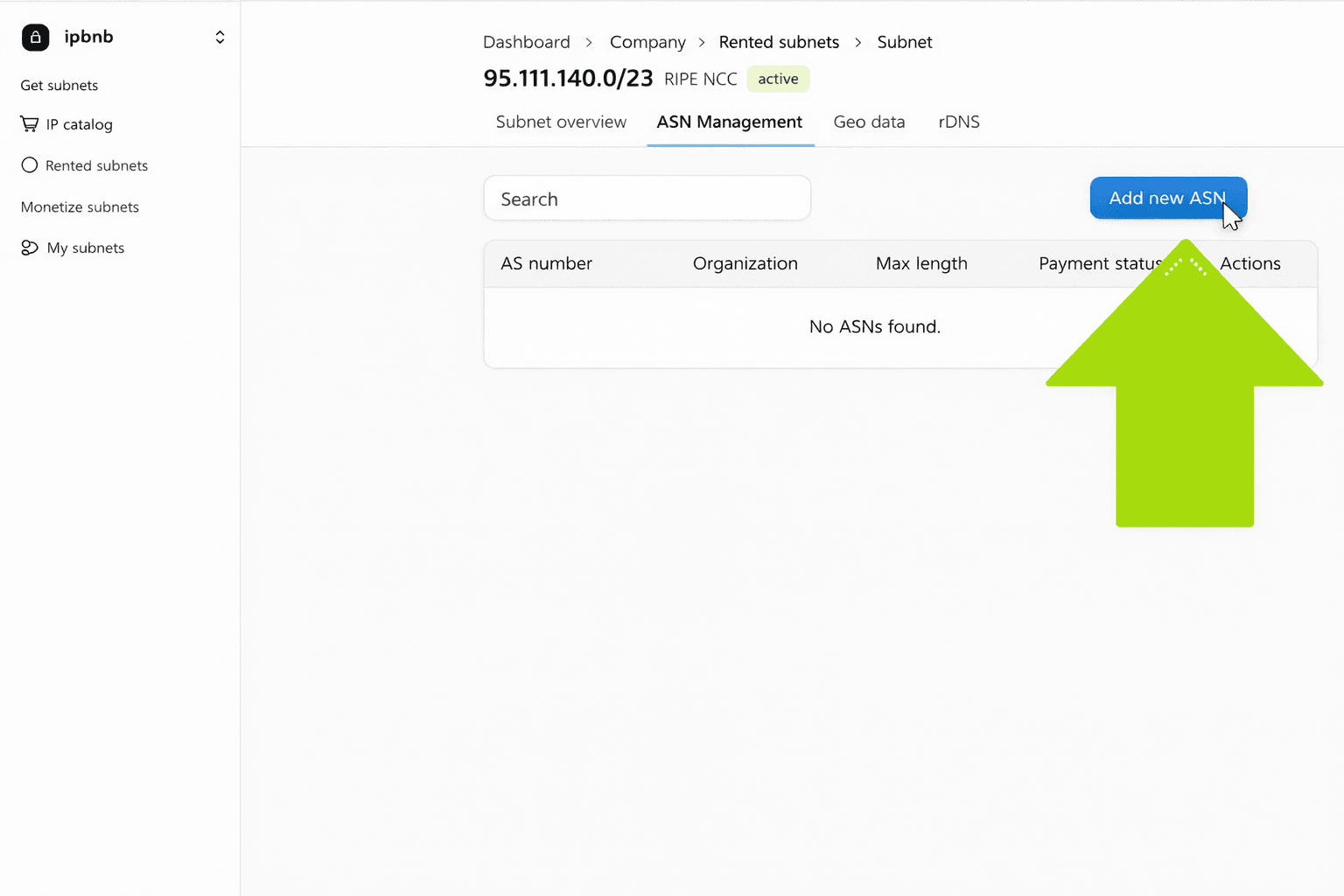
Locate ASN Management Section
On your Subnet Management Page
Scroll to "ASN Management" section
Click "Add ASN" Button
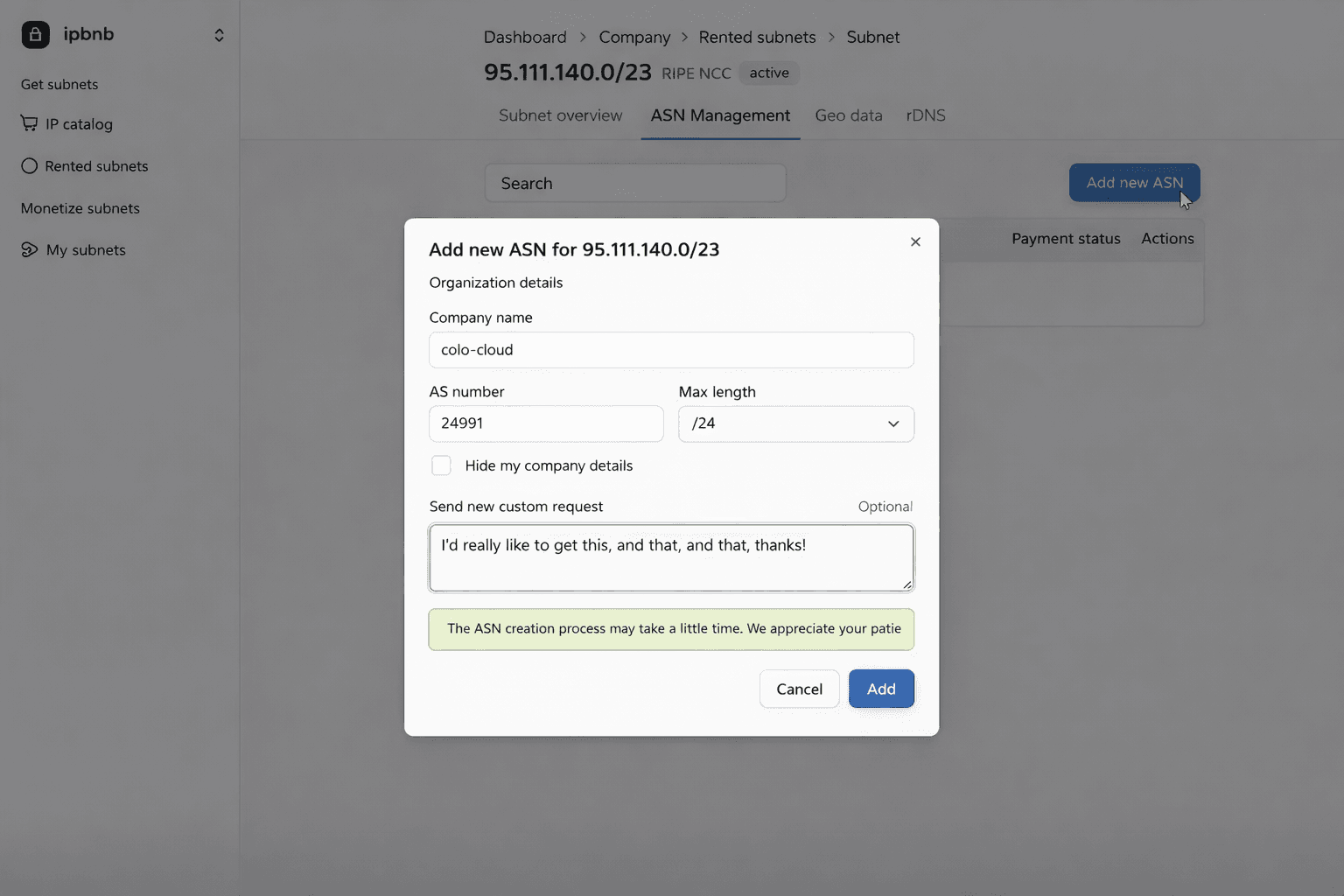
A form appears with several fields

Select Your Company
Your company name is automatically selected
This pulls information from your profile
Cannot be changed in this form
Enter the Autonomous System Number
Field label: "ASN"
Format: Without "AS" prefix
Examples:
64512This is the ASN that will announce the subnet

Which ASN to enter:
If you have your own ASN: Enter yours
If using your provider's ASN: Enter the provider's ASN
Must match the ASN you'll use in your BGP configuration
Enter the Prefix Length
Field label: "Prefix Length" or "Announcement Length"
Enter the CIDR notation number
Example: For a /24 subnet, enter
24Example: For a /23 subnet, enter
23
Important: This should almost always match your subnet size. If you leased a /24, enter 24.
Choose Company Information Visibility
You have two options for how your company appears in the public RIPE database:
Option A: Display Your Company Information
Your company name, address, and contact details will be visible
This is public information anyone can look up
Recommended if you want transparency
Option B: Remain Anonymous
Select: "Remain anonymous"
IPbnb's company information appears instead of yours
Your identity is protected
Recommended if you value privacy
Note: This decision applies to ALL ASNs you add to this subnet. If you add multiple ASNs later, they will all use the same visibility setting you choose here.
Review Your Information
Before submitting, verify:
[ ] ASN is correct
[ ] Prefix length matches your subnet size
[ ] Visibility setting is what you want
[ ] All information is accurate
Click "Submit Request"
Form is submitted
Confirmation message appears
Status changes to "ROA Creation Pending"
Understanding ROA Creation Process
What is ROA?
ROA (Route Origin Authorization) is a cryptographic certificate that proves a specific ASN is authorized to announce your subnet. It's a critical security measure that prevents unauthorized parties from hijacking your IP addresses.
Why is it required?
Security: Prevents BGP hijacking attacks
Validation: Routers can verify legitimate route announcements
Trust: Major networks and ISPs check ROA before accepting routes
Standard Practice: Industry-standard security measure
The ROA Creation Timeline:
Minute 0: You Submit ASN Request
You click "Submit Request" in ASN Management
IPbnb receives your request
Minute 1: Automatic Actions by IPbnb
IPbnb creates inetnum object in RIPE database with your (or IPbnb's) company information
IPbnb creates a ROA object template
IPbnb sends notification to subnet owner
Minute 2-48 Hours: Owner Creates ROA
Subnet owner receives email notification from IPbnb
Email contains:
Your subnet address
Your requested ASN
Maximum prefix length
Deadline (48 hours)
Step-by-step instructions
Owner must log into RIPE NCC and create ROA
See Section 7 for detailed owner instructions
Hour 48 Deadline:
If owner creates ROA within 48 hours: Success (continue below)
If owner does NOT create ROA within 48 hours: See "Failure Scenario"
After ROA is Created:
IPbnb's monitoring system detects the new ROA (checks every 15 minutes)
ROA validation completed
Both you and owner receive confirmation emails
Your subnet status changes to "Active - Ready to Use"
Total Time to Full Activation:
Best case: 30-60 minutes after you submit ASN (if owner creates ROA immediately)
Typical case: 4-12 hours
Maximum: 48 hours
Success Scenario Email:
You receive an email with subject: "ROA Created Successfully - [subnet address]"
Contents:
Confirmation that ROA is active
Your subnet is ready to use
BGP announcement instructions
Links to verification tools
Failure Scenario (Owner Doesn't Create ROA):
If the owner fails to create ROA within 48 hours:
Hour 48: Automatic Actions
Lease is Cancelled
Your lease ends immediately
If the lessee is willing to wait, the hold period can be longer
No further action required from you
Full Refund Issued
The monthly payment is refunded to your credit balance
Appears within 1 hour
You receive refund confirmation email
Subnet Returned to Catalog
Becomes available for other users to lease
Owner Receives Penalties
IPbnb applies sanctions to the owner
May include:
Reduced priority in lease matching
Temporary suspension from platform
Financial penalties as per Owner Agreement
You don't need to do anything - IPbnb handles this
What you should do:
Wait for refund confirmation email
Browse the catalog for alternative subnets
Lease a different subnet
The entire process repeats with the new subnet
What to Expect After ASN Submission
Immediate (First Hour):
Confirmation message on screen
Confirmation email sent to you
Status shows "ROA Creation Pending"
Owner receives notification
Next 48 Hours:
Wait for owner to create ROA
Check your email regularly
Subnet management page shows countdown timer
You can monitor status anytime
What You Can Do While Waiting:
Prepare your BGP configuration
Set up your infrastructure
Configure your provider (if using BYOIP)
Review IPbnb's BGP announcement guide
Nothing you need to do on IPbnb platform - just wait
What You Cannot Do While Waiting:
Announce the subnet via BGP (won't work without ROA)
Route traffic to the subnet
Use the IP addresses for services
When ROA is Active:
Email notification received
Status changes to "Active - Ready to Use"
You can now configure BGP
You can start announcing the subnet
You can route traffic and use the IPs
Adding Multiple ASNs to One Subnet
Some users need to assign multiple ASNs to a single subnet. This is useful when:
You don't have your own ASN but work with multiple providers
You're a large provider with multiple autonomous systems
You serve multiple clients who each have their own ASNs
You need redundancy across multiple networks
How to Add Multiple ASNs:
Add First ASN (as described above)
Complete the entire process
Wait for ROA creation
First ASN becomes active
Add Second ASN
Go back to ASN Management section
Click "Add ASN" button again
Enter second ASN number
Enter same prefix length
Important: Company information visibility is already set (you cannot change it)
Submit request
Owner Creates Second ROA
Owner receives another notification
Owner creates another ROA in RIPE NCC (one for each ASN)
Same 48-hour deadline applies
Repeat for Additional ASNs
No limit on number of ASNs
Each requires separate ROA from owner
Each has its own 48-hour creation period
Important Notes:
Same Company Information for All: The visibility setting you chose for the first ASN applies to all subsequent ASNs on this subnet. You cannot have different companies displayed for different ASNs on the same subnet.
All ASNs Equal: There's no "primary" or "secondary" ASN. All ASNs are equally authorized.
Separate Notifications: The owner receives a separate notification for each ASN you add.
Example Scenario:
You lease 185.123.45.0/24 and need three providers to announce it:
Provider A: AS64512
Provider B: AS64513
Provider C: AS64514
Process:
Add AS64512 → Owner creates ROA 1 → Active
Add AS64513 → Owner creates ROA 2 → Active
Add AS64514 → Owner creates ROA 3 → Active
Now all three providers can announce your subnet simultaneously.
Optional: Adding Geo Data
Geolocation information affects where IP address databases show your IPs are located.
When to update geo data:
You want different geolocation than the default
You're routing through a specific country
You need location accuracy for compliance
How to add/update:
Go to "Geo Data" section
Click "Update Geolocation"
Enter desired location information
Submit request
IPbnb reviews and processes (1-2 business days)
Note: This is optional and does not affect subnet functionality.
Optional: Configuring DNS (PTR Records)
Reverse DNS maps IP addresses to hostnames.
When you need PTR records:
Running mail servers (required for deliverability)
Better security and trust signals
Professional service appearance
Some services require it
When you don't need PTR records:
General hosting without mail
VPN services
Most web hosting scenarios
How to configure:
Go to "DNS Management" section
Click "Add PTR Record"
Enter IP address and corresponding hostname
Submit
Changes propagate within 24 hours
Related articles