
Help Center
Renting a Subnet
Managing Your Leased Subnet
After your subnet is active, you'll need to manage it throughout the lease period.
9
min.
Reading time
Beginner
Complexity level
Table of Contents
item
Viewing Active Leases
Access all leased subnets:
Log in to IPbnb: https://my.ipbnb.com/
Click "Rented Subnets" in left menu
View list of all active leases
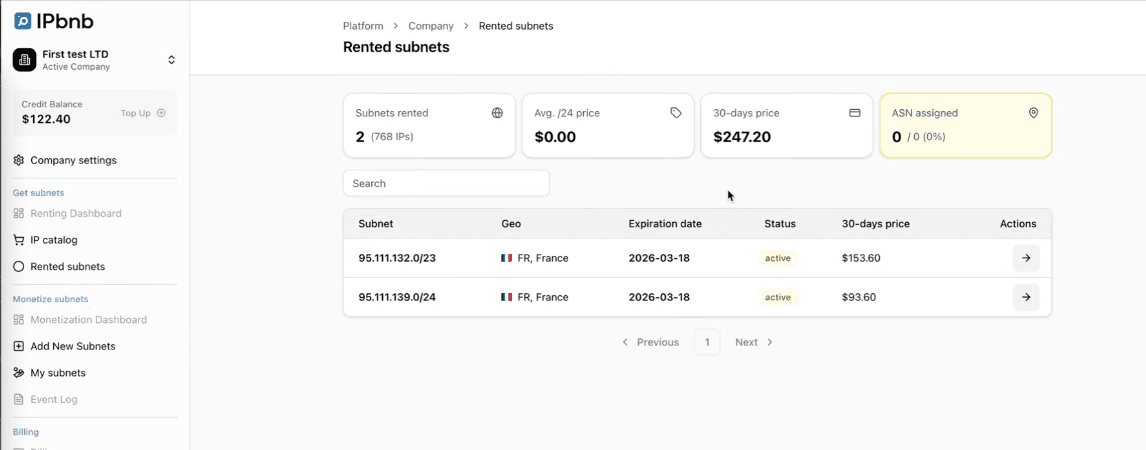
Information displayed for each subnet:
Subnet address (e.g., 185.123.45.0/24)
Monthly cost
Status (Active, Suspended, etc.)
Next payment date
Quick action buttons
Subnet statuses explained:
Active - Ready to Use: ROA created, fully functional
Active - Pending Configuration: Leased but ASN not added yet
ROA Creation Pending: Waiting for owner to create ROA
Payment Pending: Renewal payment due soon
Suspended: Payment failed, grace period active
Terminating: Termination requested, active until end of paid period
Terminating a Lease
If you no longer need a leased subnet, you can terminate the lease.
Important Information About Termination
Critical points to understand:
Termination is NOT Immediate
Lease continues until end of current paid period
If paid through April 30, subnet remains active until April 30
Cannot terminate earlier
No Partial Refunds
If you paid for 30 days and terminate after 15 days, no refund
You still have access for the full 30 days
Make use of remaining time
Subnet Remains Functional
Until expiration date, subnet works normally
You can continue using it
All configurations remain active
No Further Charges
Once termination confirmed, no more renewals
No payment deducted at next renewal date
Balance unaffected going forward
When to terminate:
Business no longer needs these IPs
Consolidating to fewer subnets
Changing providers or strategy
Cost reduction initiative
Before you terminate, consider:
Can you use the subnet until the paid period ends?
Do you have alternative IP resources ready?
Have you updated DNS records elsewhere?
Have you informed your customers (if applicable)?
How to Terminate
Step-by-Step Process:
Log in to IPbnb
Go to Rented Subnets
Click "Rented Subnets" in left menu
View all active leases
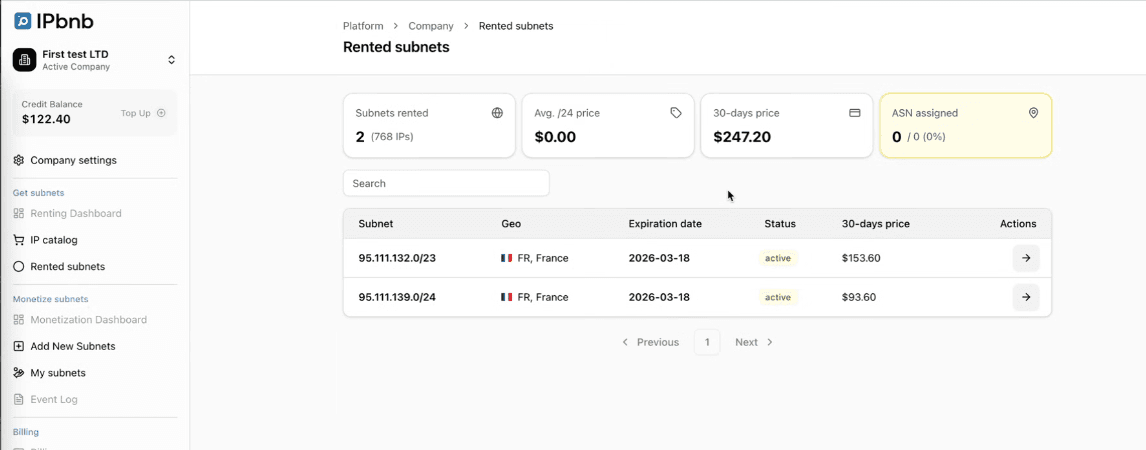
Select Subnet to Terminate
Click on the subnet you want to end
Opens Subnet Management Page
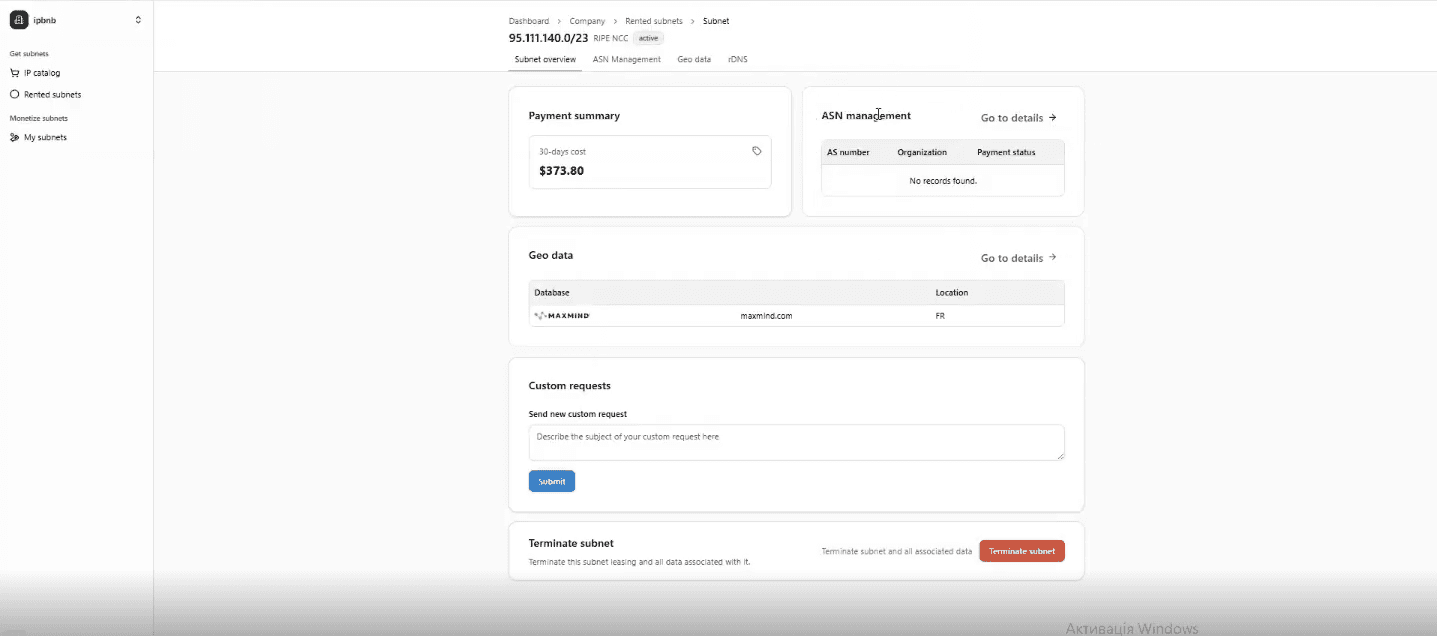
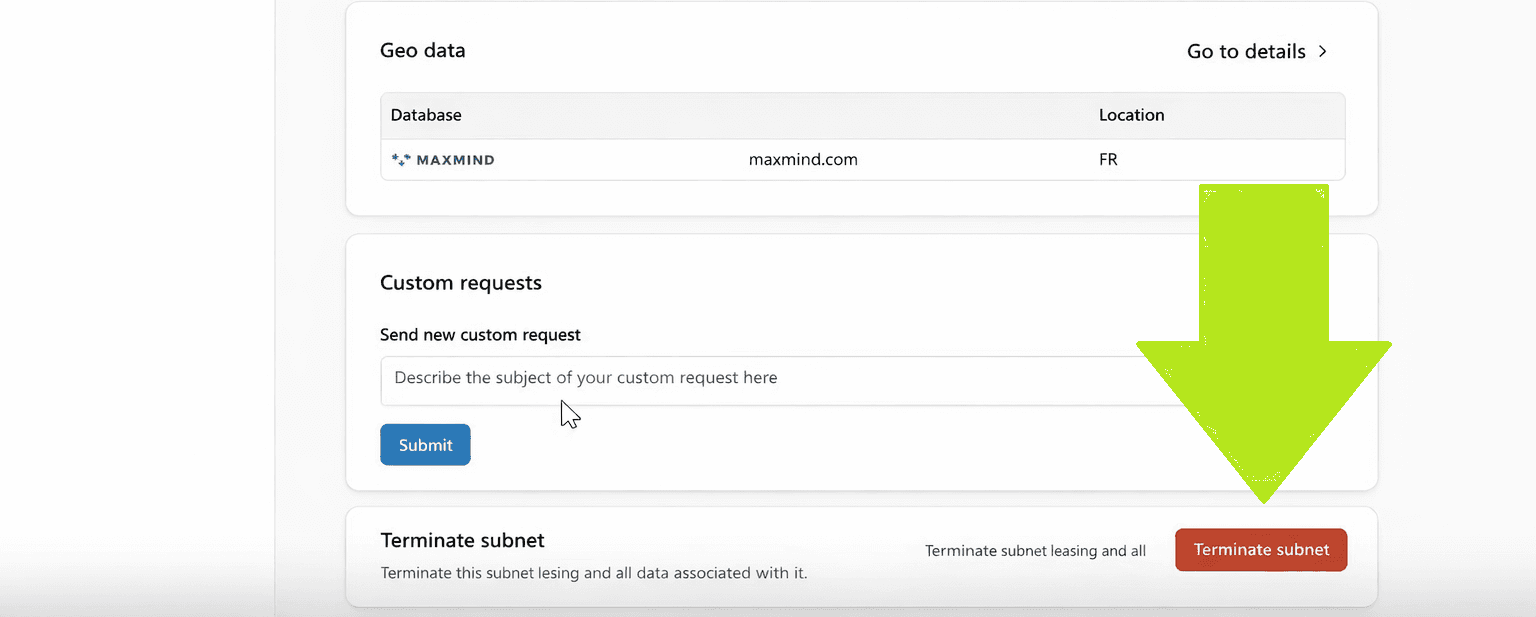
Scroll to Bottom
Find "Terminate Subnet" section
Located at bottom of page
Read the Warning
Warning message explains:
Termination is not immediate
No refund for current period
Subnet will remain active until expiration date
Make sure you understand before proceeding
Click "Terminate" Button
Red button labeled "Terminate Lease" or "Terminate Subnet"
Confirmation dialog appears
Confirm Termination
Dialog asks: "Are you sure you want to terminate this lease?"
Shows subnet address
Shows expiration date (when termination takes effect)
Important security step: Enter the subnet address exactly
Example: If subnet is 185.123.45.0/24, type:
185.123.45.0/24Copy-paste allowed
Final Confirmation
Click "Confirm Termination"
Request processed immediately
Confirmation Message
On-screen confirmation: "Termination request submitted"
Details shown:
Current date
Termination effective date
Days remaining
What Happens After Termination Request
Immediate Changes:
Status Updated
Subnet status changes to "Terminating"
Shows countdown to termination date
Warning badge displayed
Auto-Renewal Disabled
No future payments will be deducted
Next renewal date removed
Payment reminders stopped
Subnet Remains Active
Full functionality continues
Can still use all IPs
BGP announcements continue working
All configurations remain
During Termination Period (Until Expiration):
Use the subnet normally: Nothing changes in functionality
Cannot cancel termination: Decision is final
Cannot extend: If you change your mind, you must lease again after termination
Prepare for transition: Set up alternative IPs if needed
On Expiration Date:
At midnight UTC on expiration date:
Lease Ends
Subnet officially terminated
No longer accessible in your account
Subnet Removed
Disappears from "Rented Subnets" list
Moves to "Lease History" (for records)
ROA Revoked
Owner notified to delete ROA
BGP announcements will fail validation
Critical: Stop announcing via BGP before this date
Subnet Returned
Returns to IPbnb catalog
Available for other users to lease
Final Email Sent
Subject: "Lease Terminated - [subnet address]"
Confirms termination complete
Provides lease history summary
What You Must Do Before Expiration:
Stop BGP Announcements
Remove subnet from BGP configuration
Stop advertising the routes
Do this at least 24 hours before expiration
Prevents invalid route advertisements
Update DNS Records
Remove any DNS records pointing to these IPs
Update A records for domains
Update PTR records if you configured them
Migrate Services
Move any services to new IPs
Update firewall rules
Update application configurations
Inform customers of IP changes (if applicable)
Document the Change
Record old and new IP ranges
Update network diagrams
Update internal documentation
Can I Get a Refund?
Standard Policy:
No refunds for early termination. Lease terms are 30 days, and you pay for the full period.
Exceptions (Automatic Refunds Issued):
ROA Not Created Within 48 Hours
Full refund automatically issued
See Section 6 for details
IPbnb Service Failure
If IPbnb platform causes inability to use subnet
Technical failure on our side
Full or partial refund at IPbnb's discretion
Subnet Doesn't Match Description
Wrong geolocation
Wrong subnet size
Wrong RIR
Full refund issued
No Refunds For:
Change of mind
Early termination (voluntary)
Business changes
Migration to different provider
Consolidation of IP resources
Disputed Charges:
If you believe you were charged incorrectly:
Contact support@ipbnb.com immediately
Include:
Transaction ID
Subnet address
Explanation of dispute
Supporting documentation
IPbnb reviews within 5 business days
Resolution provided via email
Lease History
After termination, lease remains in your records:
Access Lease History:
Go to "Rented Subnets"
Click "Lease History" tab
View all past leases
Information Retained:
Subnet address
Lease start date
Lease end date
Total duration
Total cost
Download invoices
Configuration history
Why keep history:
Accounting records
Tax documentation
Network planning
Compliance audits
Future reference
Frequently Asked Questions
What is the minimum lease period?
The minimum lease period is 30 days (one month). All leases are billed monthly.
Can I lease multiple subnets at the same time?
Yes, you can lease as many subnets as you need. Simply add multiple subnets to your cart and complete payment for all of them together.
Are there any platform fees?
No. IPbnb charges zero platform fees to lessees. You pay only the subnet rental price shown in the catalog.
Can I use leased IPs for any purpose?
You must follow IPbnb's Acceptable Use Policy and applicable laws. Prohibited uses include: spam, DDoS attacks, illegal content hosting, phishing, malware distribution, and copyright infringement.
What if I don't have my own ASN?
You can use your infrastructure provider's ASN if they agree to announce your subnet. This is called BYOIP (Bring Your Own IP). Contact your hosting or colocation provider to arrange this.
Can I change the ASN after the lease starts?
Yes, you can add additional ASNs or change them through the ASN Management section on your subnet page. Each change requires the owner to create a new ROA.
What is ROA and why is it required?
ROA (Route Origin Authorization) is a cryptographic certificate that validates BGP route announcements. It prevents unauthorized parties from hijacking your IP space and is required by most major networks for route acceptance.
How long does it take for my subnet to be ready to use?
After payment confirmation, the subnet owner has 48 hours to create the ROA. Most owners create it within a few hours. Once ROA is active (typically 30 minutes to 12 hours), you can immediately begin using the subnet.
What happens if the owner doesn't create the ROA within 48 hours?
Your lease is automatically cancelled, you receive a full refund to your credit balance, and the owner receives penalties. You can then lease a different subnet.
Can I test the IPs before leasing?
No. IPs cannot be tested before lease commitment. However, IPbnb validates all subnets for clean reputation before listing them in the catalog.
Do I need to configure anything on IPbnb after my subnet is active?
After ASN is added and ROA is created, you don't need to do anything on IPbnb. All configuration happens in your own network infrastructure (BGP, routing, services).
Can I announce only part of my leased subnet?
Generally, no. BGP requires announcement of at least /24 blocks. You lease and announce the entire subnet. If you need smaller ranges, consider leasing a smaller subnet size.
What if my company information changes?
You can update your company information in Company Settings. Significant changes (company name, registration number) may require re-verification.
Can I have multiple companies in one account?
Yes. One user account can manage multiple companies. Useful if you operate several business entities.
What happens if my account is suspended?
Account suspension usually occurs due to payment issues or policy violations. Your active leases continue working, but you cannot lease new subnets or access certain features. Contact support@ipbnb.com to resolve.
What if I have a technical issue that cannot be resolved through the platform?
Use the "Custom Requests" feature on your subnet management page, or email support@ipbnb.com. Provide detailed information about your issue, including subnet address, error messages, and steps you've tried.
Is there a limit on how many subnets I can lease?
No hard limit. You can lease as many subnets as your business needs and credit balance supports. Very large requirements (50+ subnets) should contact sales@ipbnb.com for potential volume arrangements.
What if the subnet owner terminates their listing while I'm leasing?
Your active lease is protected. You continue your lease until you terminate or the paid period ends. The owner cannot cancel your lease prematurely.
Where should I announce my subnet geographically?
You announce the subnet from wherever your infrastructure is located. The geolocation in IPbnb refers to IP database registration, not physical routing location.
Related articles