
Help Center
Listing a Subnet
How to Add Your IPv4 Subnets to the IPbnb Marketplace
A step-by-step walkthrough for IP holders: from configuring your subnet in the RIPE database to going live on the IPbnb marketplace in under 30 minutes.
8
min.
Reading time
Beginner
Complexity level
Table of Contents
item
Overview
This guide will help you list your IPv4 addresses for lease on the IPbnb marketplace. Before your addresses can be leased, they must be properly configured in the RIPE database. We'll walk you through each step of the process.
What you'll need:
Access to your RIPE NCC LIR portal
PA (Provider Allocated) status IPv4 addresses
Clean IP reputation
Access to your organization's abuse-mailbox email
New to IPv4 monetization? Start with our complete guide to monetizing IPv4 blocks.
Need help? Contact our support team at any time: support@ipbnb.com
Understanding RIPE Requirements
IP Address Status: PA vs PI
Your IP addresses must have PA (Provider Allocated) status to be listed on IPbnb. Here's why this matters:
PA addresses can be sub-allocated and leased to others (allowed by RIPE policy)
PI (Provider Independent) addresses can only be used by the owner (leasing violates RIPE policy and may result in address revocation)
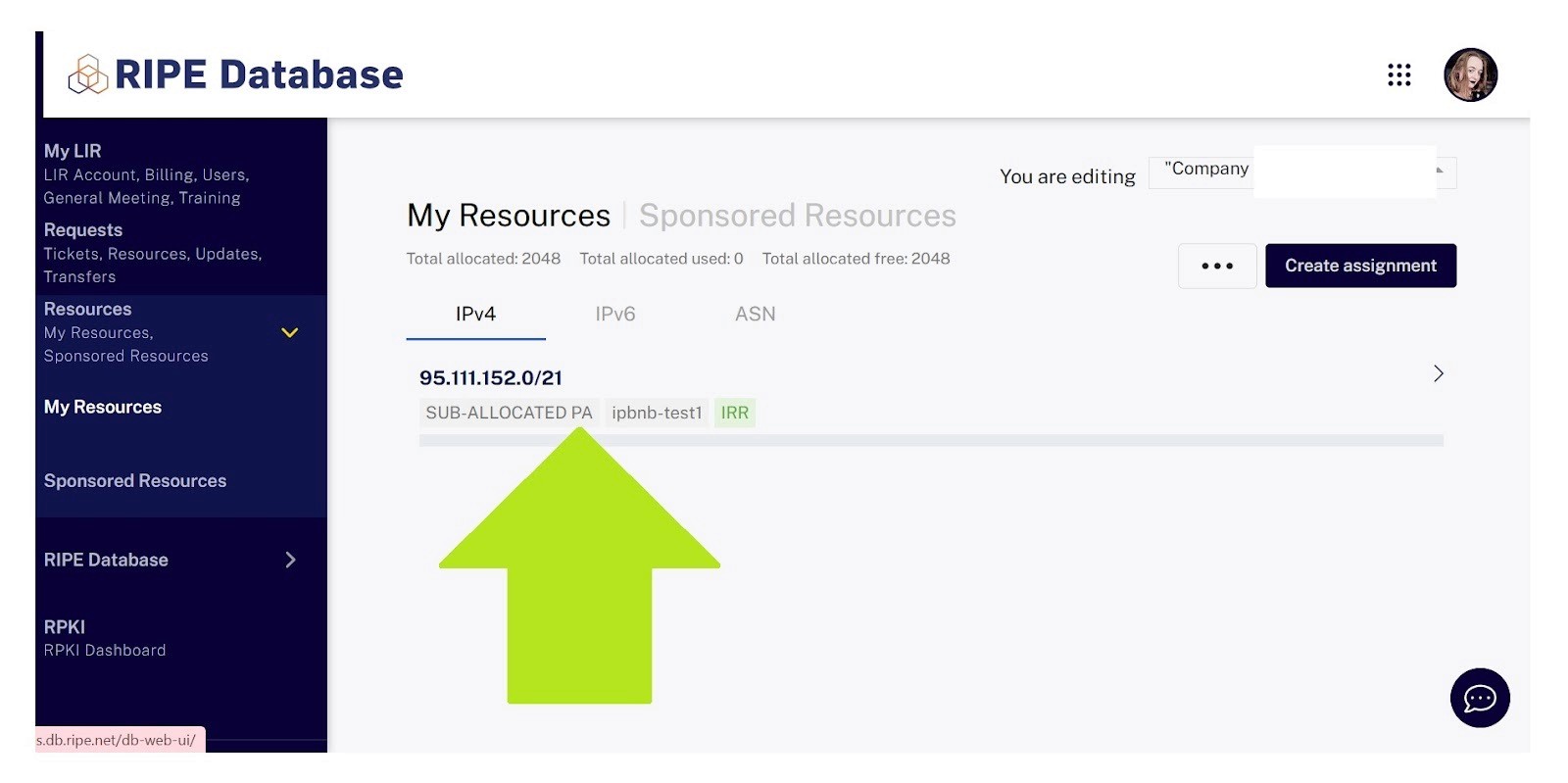
You can check your address status in the "My Resources" section of your LIR portal.
Where to find "PA" or "PI" status:
The /24 Rule
RIPE policy requires that allocations larger than /24 must be divided into smaller blocks before leasing. This means:
If you have a /24 allocated PA subnet (256 addresses): You can lease it as one block
If you have a /21, /22, /23, etc.: You must split it into at least two separate blocks
Example: You own a /21 block (2,048 addresses) and want to lease 1,024 of them. You'll need to create a /22 inetnum object for the portion you want to lease.
Part 1: Preparing Your Subnet in RIPE
Every IP address owner has access to the LIR portal.
Go to https://access.ripe.net/
Log in using two-factor authentication:
Enter your email and password
Verify with your authentication app's one-time code
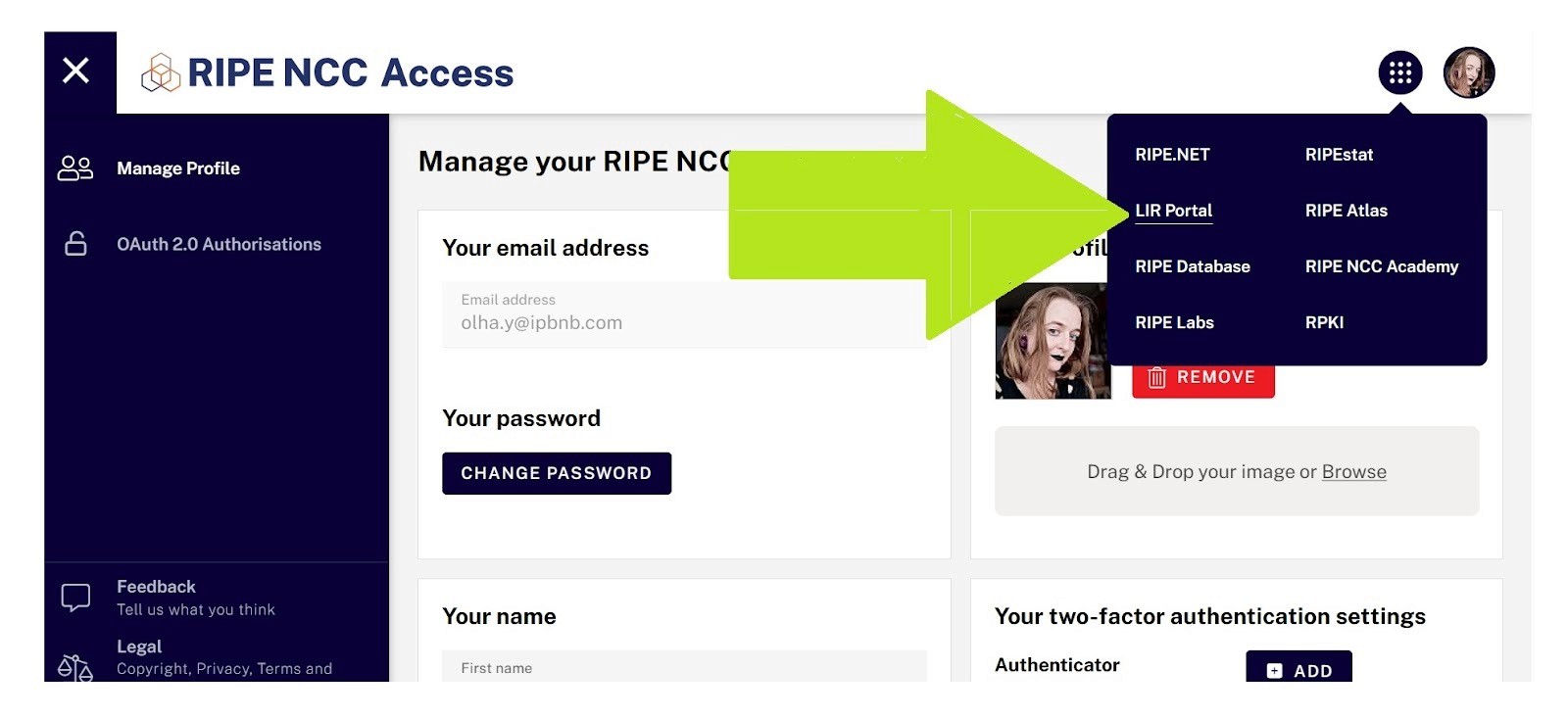
Navigate to the LIR portal from the top menu
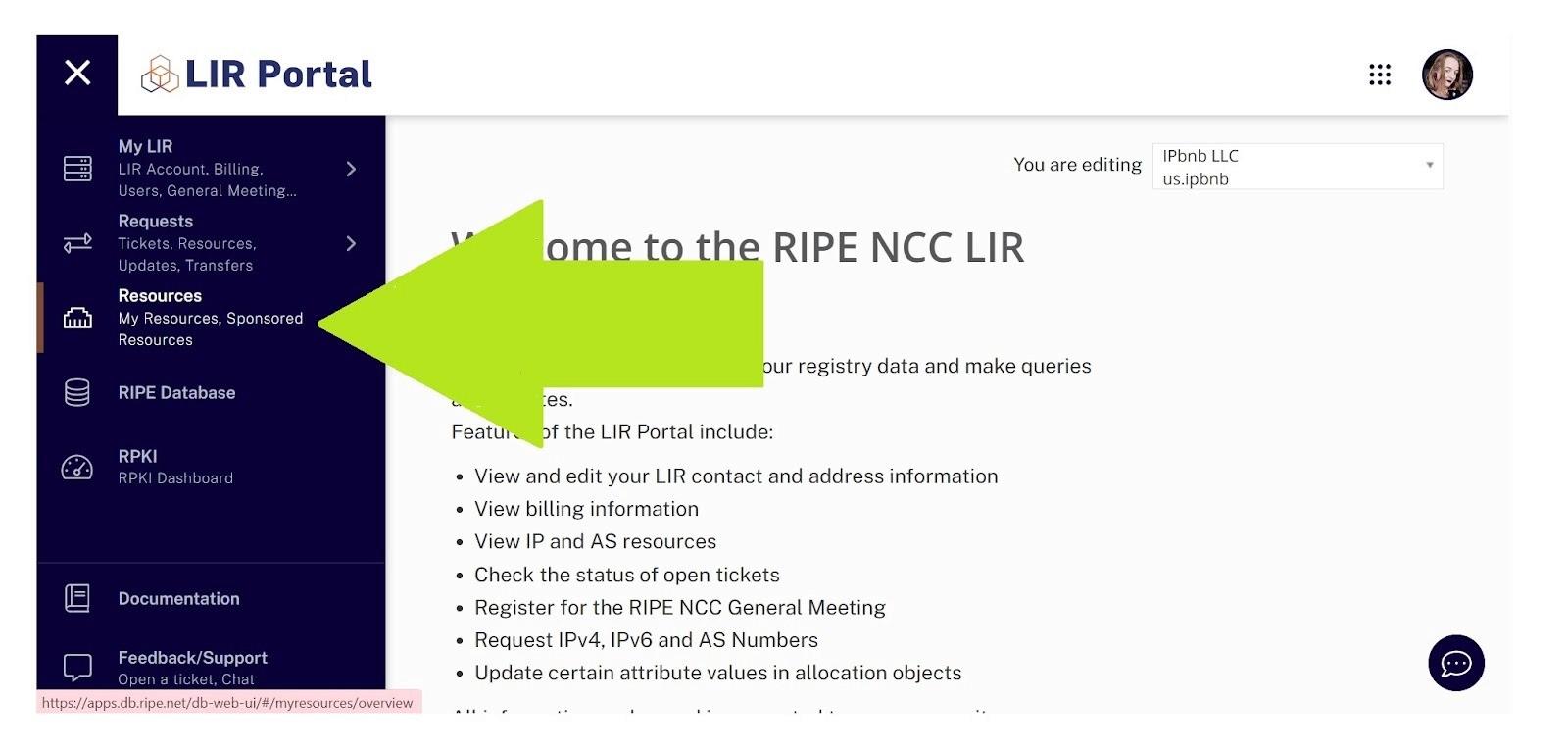
Open the "My Resources" tab
Step 2: Choose Your Scenario
Choose the path that matches your situation:
Scenario A: My subnet is larger than /24 → Continue to Step 3A
Scenario B: My subnet is exactly /24 ALLOCATED PA → Jump to Step 3B
Step 3A: For Subnets Larger Than /24
Why this step is necessary
When your subnet is larger than /24, you need to create a new, more specific inetnum object. This allows IPbnb to manage just the portion you want to lease while you retain ownership of the parent block.
Before you begin
Clear all existing data from the subnet you plan to lease:
Remove all sub-objects and related entries from the RIPE database
Remove all ROA records from the RPKI database
Ensure the addresses are not announced on the internet
Verify there are no active BGP announcements (either standalone or as part of a larger block)
Common mistake: Forgotten legacy data is the #1 cause of verification failures. Double-check that nothing from past usage remains.
Creating the new inetnum object
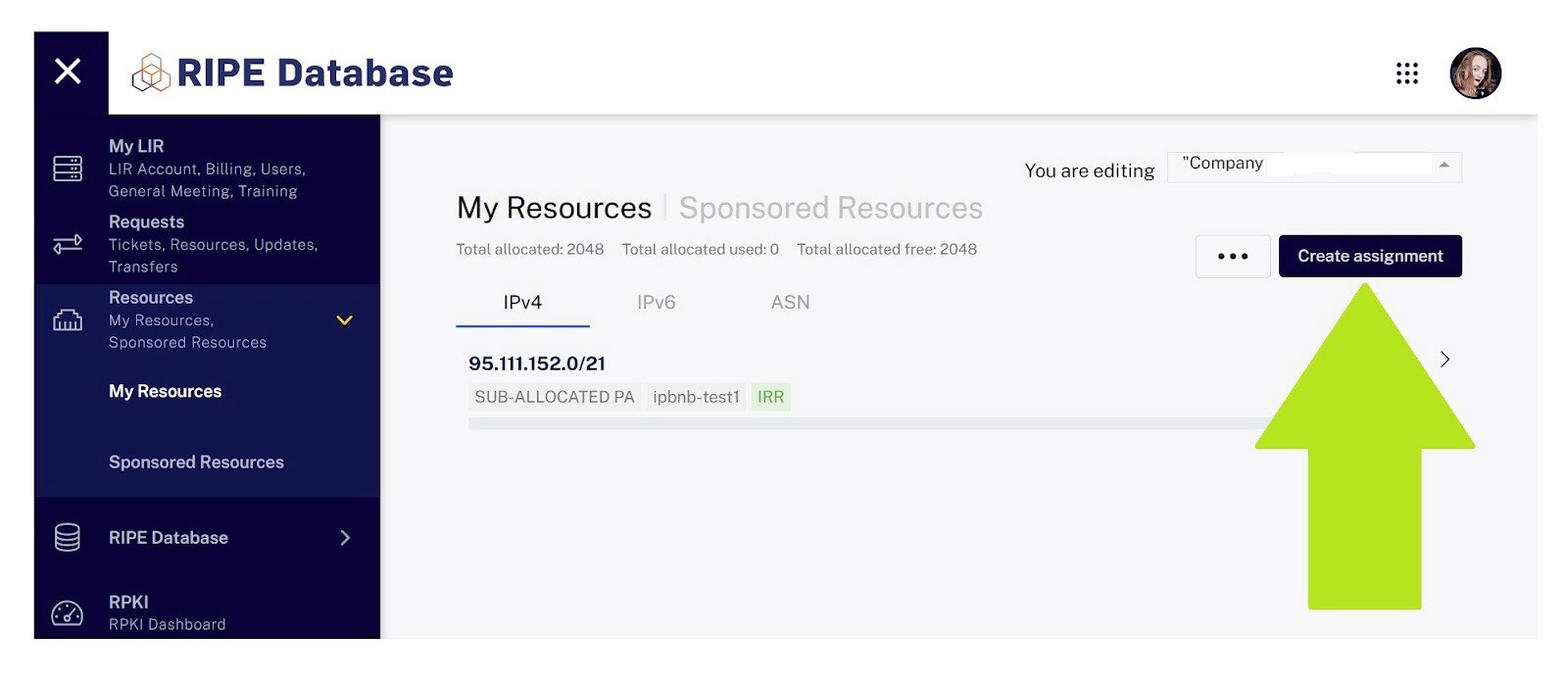
In your LIR portal, go to RIPE Database → Resources → My Resources → Create assignment
Fill in the required fields:
inetnum: Enter your subnet in CIDR format (e.g., 95.111.152.0/22). The last octet must be higher than the parent object's last octet
netname: Choose any name (Latin characters only, no spaces). Example: IPBNB-LEASE-BLOCK-1
country: Your country code (e.g., NL, DE, FR)
admin-c: Administrative contact (choose from your existing contacts)
tech-c: Technical contact (choose from your existing contacts)
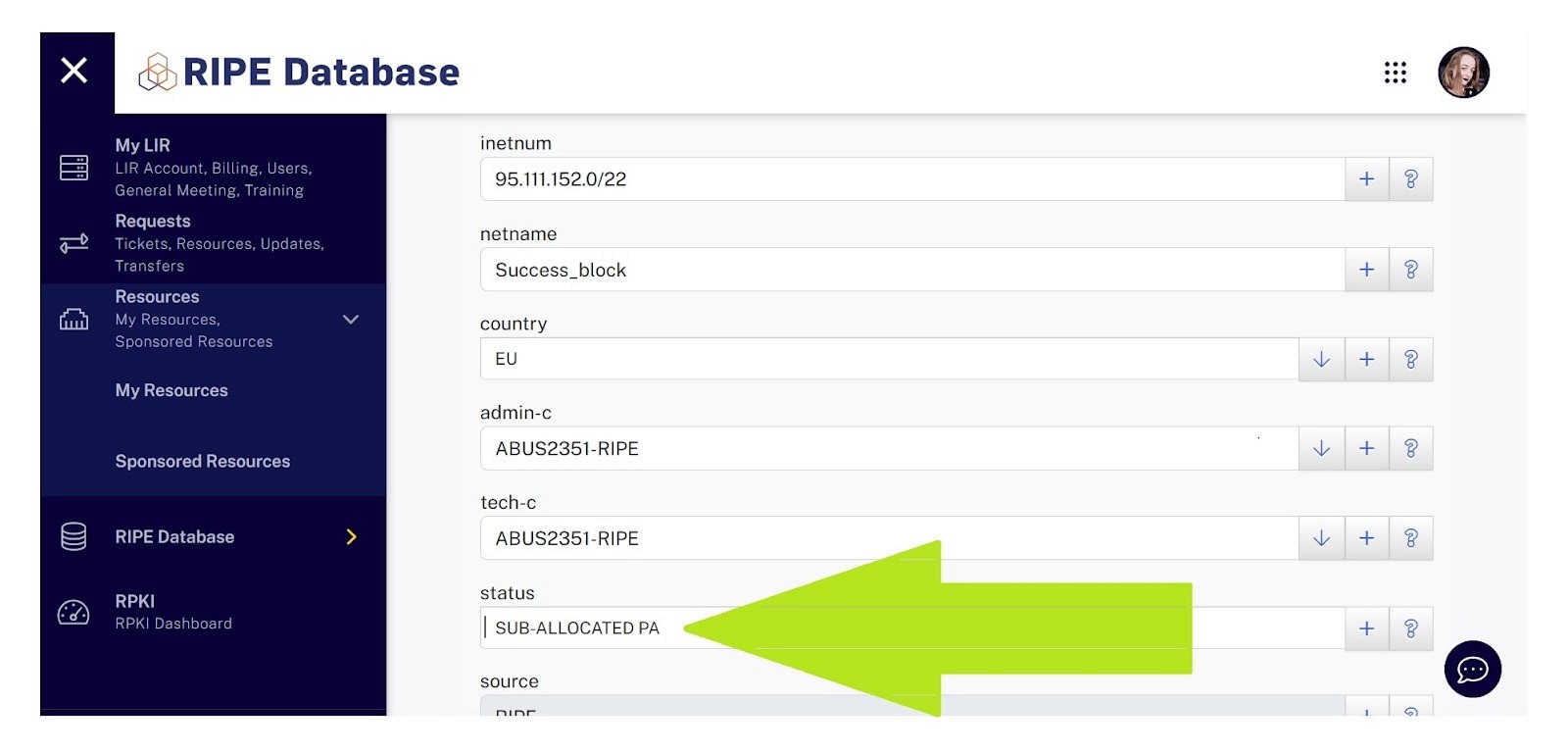
status: This is critical — Must be set to SUB-ALLOCATED PA. This status allows IPbnb to manage the subnet while you retain ownership. Without this exact status, verification will fail.
Example of filling in data for a new object. Note the status line:
Add the required optional fields by clicking the + button:
organization (org): Your organization code from RIPE.
Important: You must have access to the abuse-mailbox email for this organization. Verification emails will be sent to this address.
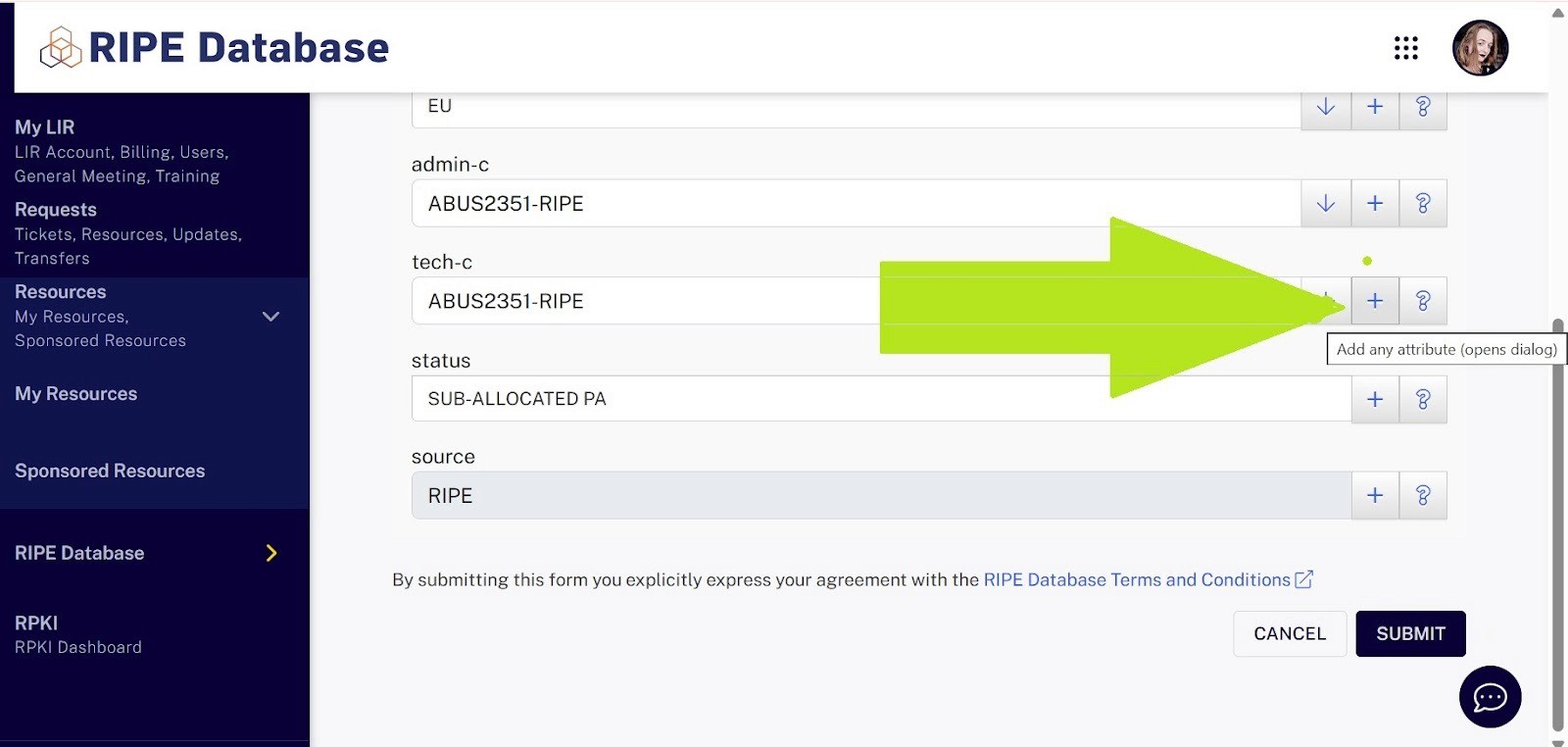
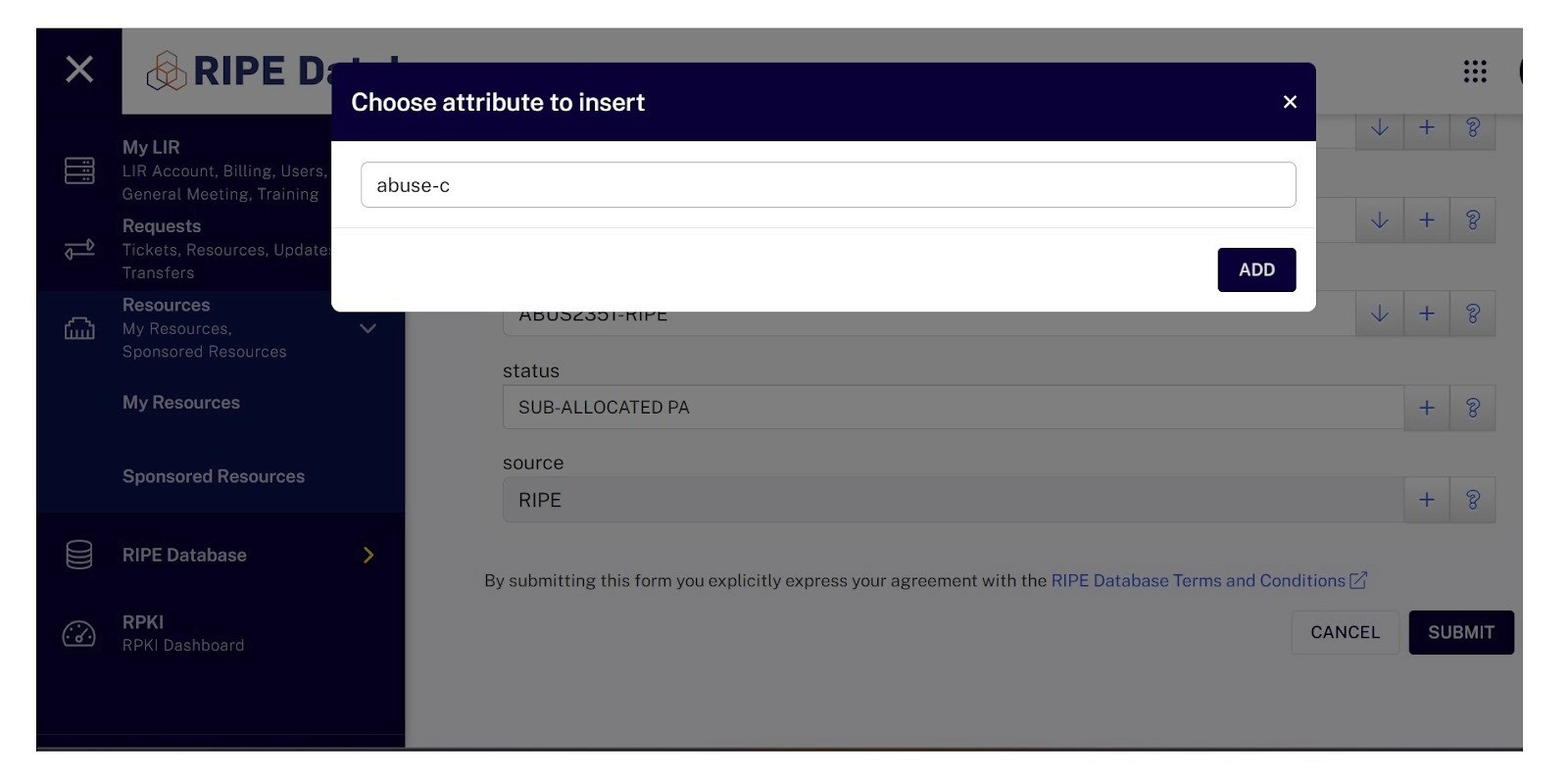
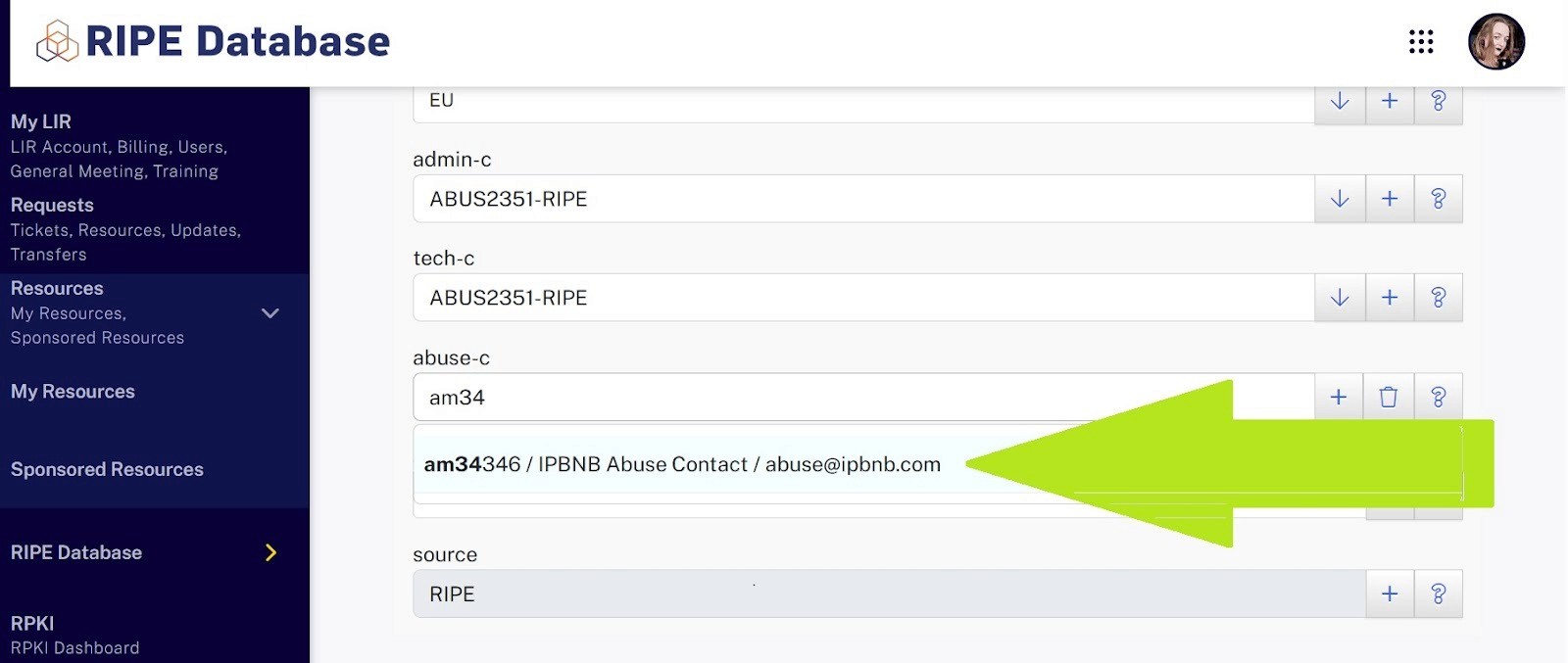
abuse-c: Enter AM34346 (IPbnb's abuse contact). This is required for marketplace listing.
How to add: Click + next to an existing field → Select abuse-c → Enter AM34346
How to add IPbnb as the abuse contact:
mnt-by: Add IPbnb-MNT (IPbnb as maintainer)
This allows IPbnb to make necessary RIPE database updates on your behalf. You remain the owner; this only grants management rights for leasing purposes.
How to specify IPbnb as the maintainer:
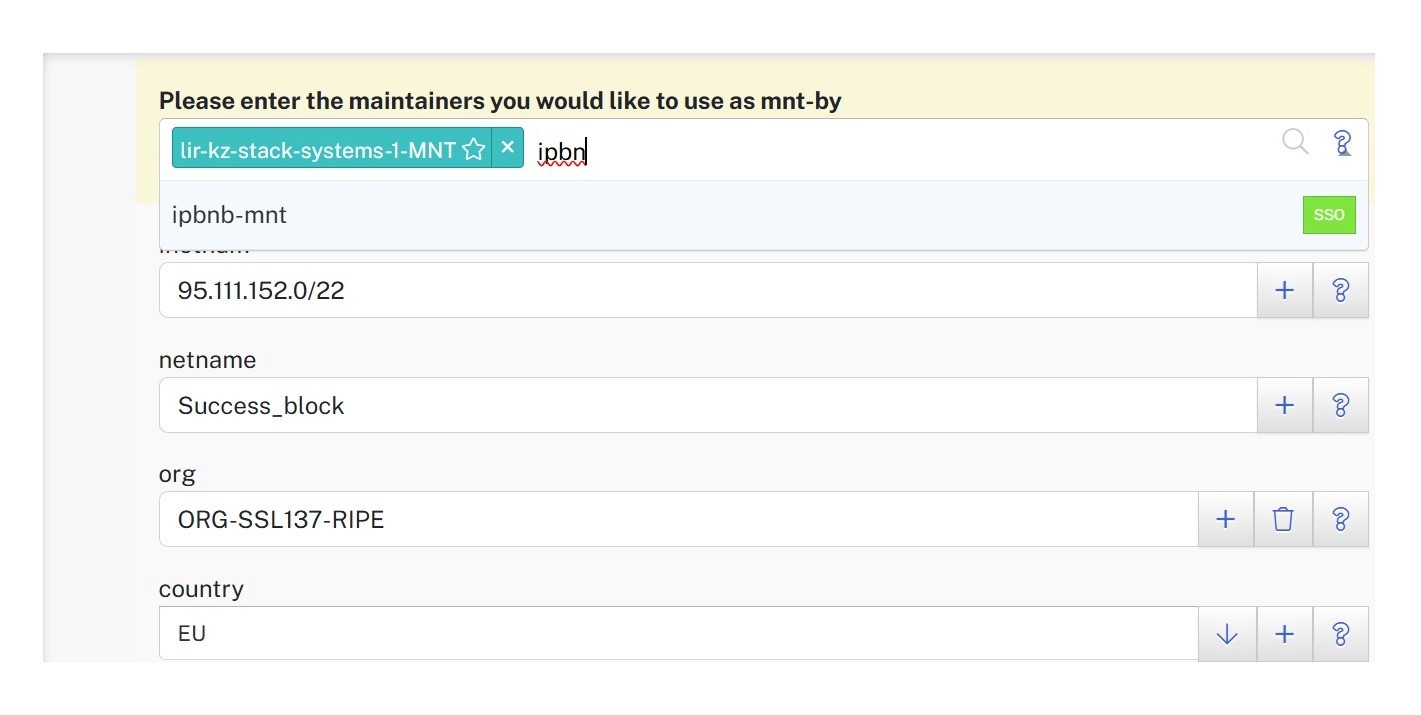
Review your entries and click SUBMIT
Verification checkpoint
Check your new object in the RIPE database:
Search for your subnet at https://apps.db.ripe.net/db-web-ui/query
Verify all fields are correct, especially status, abuse-c, and mnt-by
Confirm the object appears with no errors
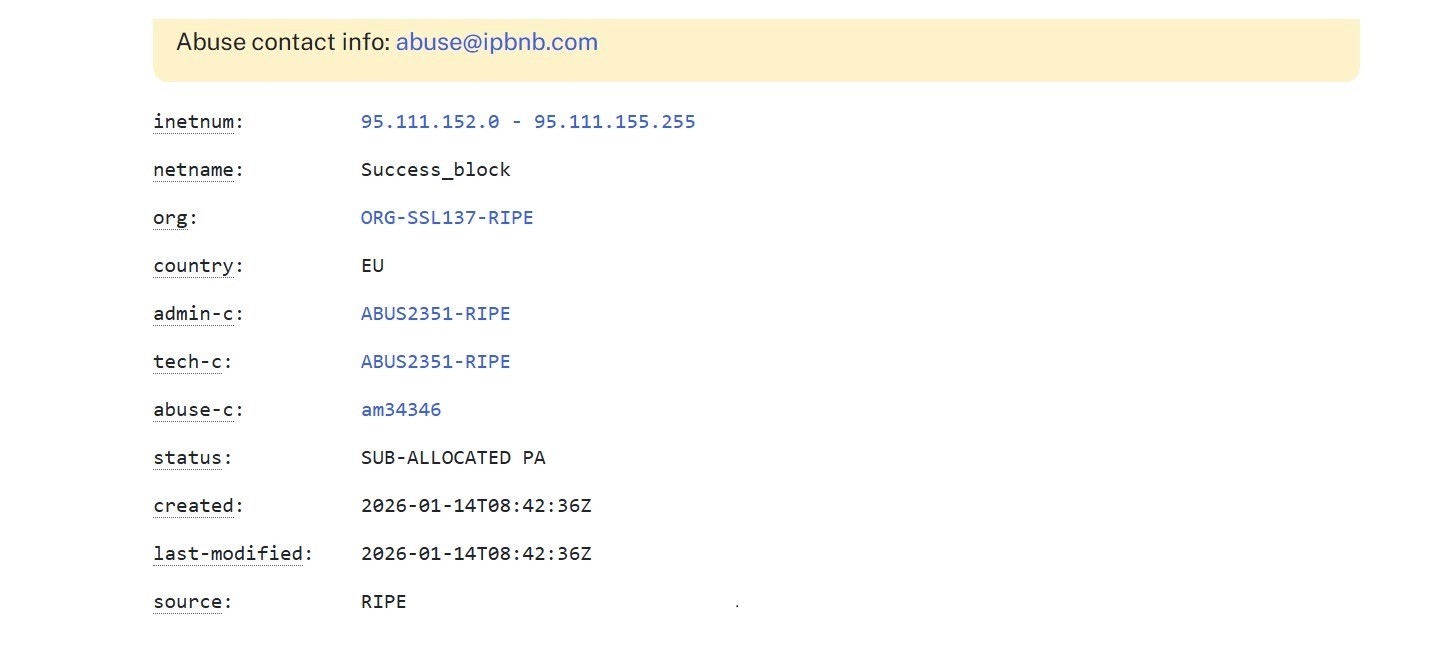
Step 3B: For /24 Subnets
Why this step is different
A /24 subnet cannot be split further, so you'll edit the existing root object instead of creating a new one.
Important limitation
The root object must have your LIR as the primary maintainer (mnt-by). However, you can add IPbnb as a lower-level maintainer, which is sufficient for marketplace operations.
Editing your /24 object
In the RIPE database, search for your /24 subnet
Click Modify on the inetnum object
Add or update these fields:
abuse-c: Set to AM34346 (IPbnb's abuse contact)
Add these three maintainer fields:
mnt-lower: IPbnb-MNT
mnt-routes: IPbnb-MNT
mnt-domains: IPbnb-MNT
Ensure you have access to the abuse-mailbox
Click SUBMIT
Critical Pre-Launch Check
Before adding your subnet to IPbnb, verify:
The subnet is not currently announced on the internet
All old route objects and related data are removed
IP reputation is clean (check using reputation monitoring tools)
You have access to the organization's abuse-mailbox email
All required RIPE fields are correctly filled
Why this matters: If any announcements or old data remain, the automated verification will fail, and you'll need to clean up before trying again.
Part 2: Adding Your Subnet to IPbnb
Step 1: Add Your Subnet
Log in to your IPbnb account
Navigate to Add New Subnet
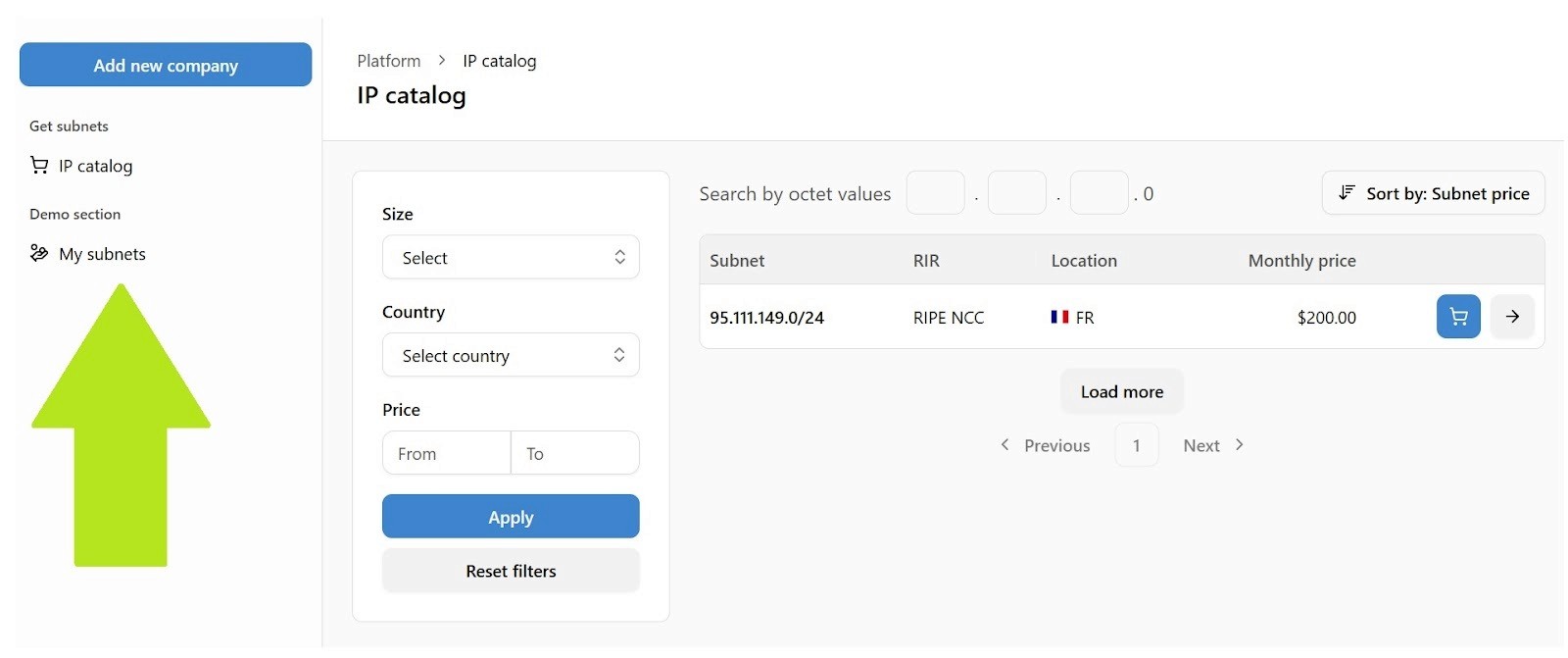
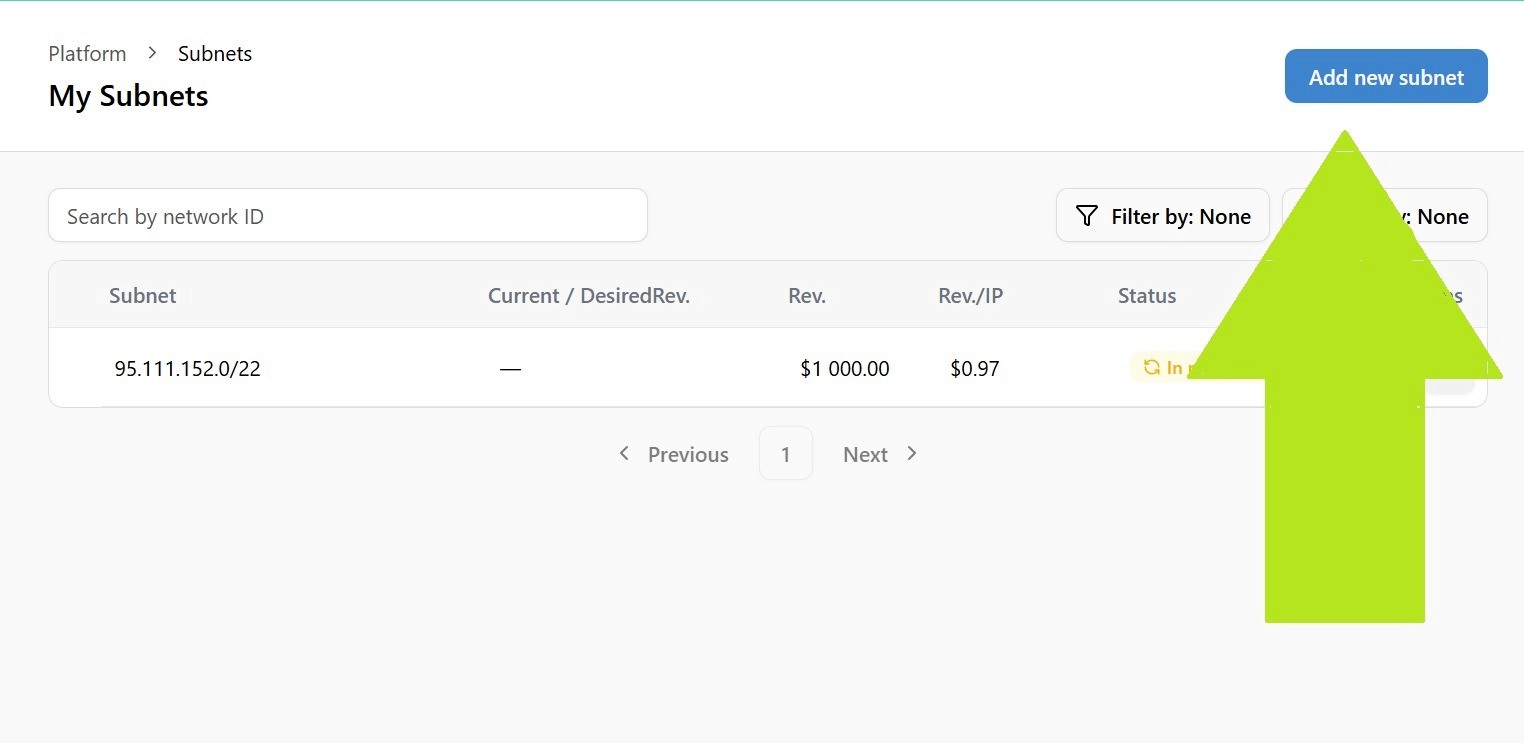
Enter your subnet in CIDR format (e.g., 95.111.152.0/22)
If correctly configured, the system will show: Valid ✓
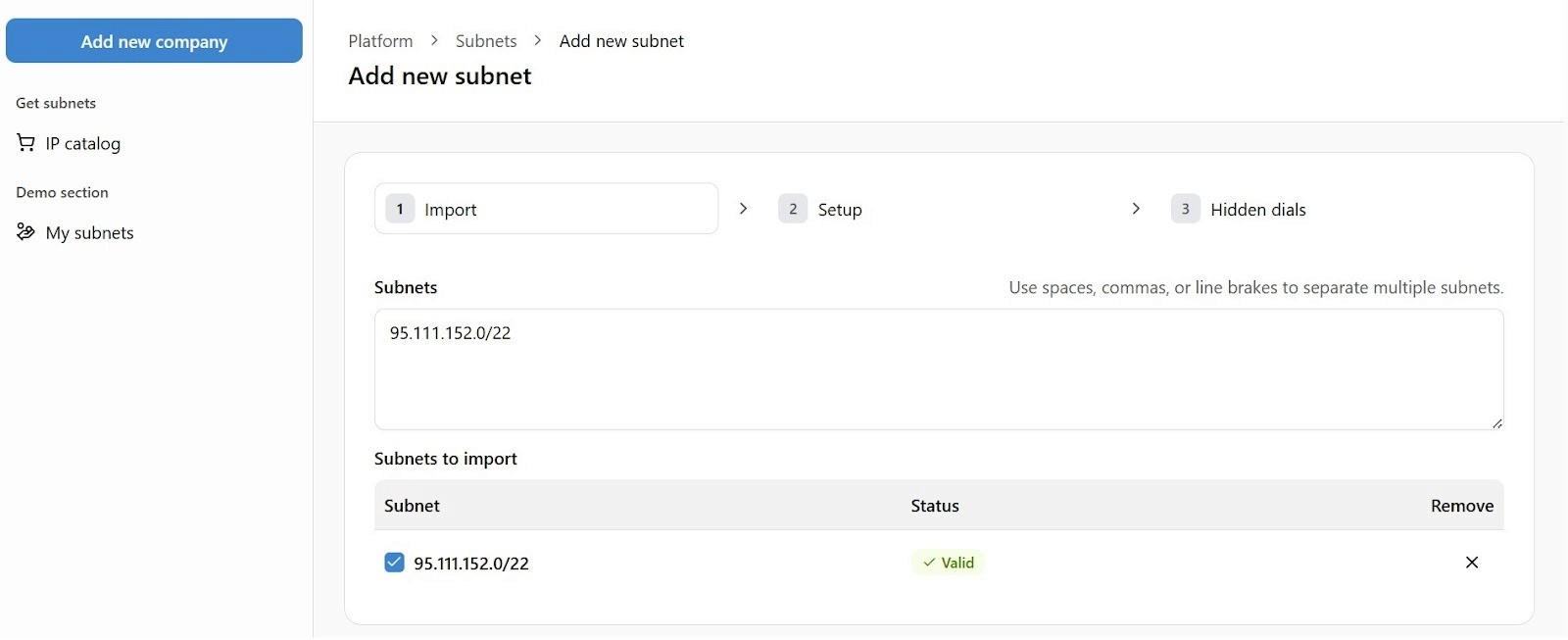
If you see an error message, review the RIPE configuration requirements above
Click Next
Step 2: Configure Your Listing (Import Tab)
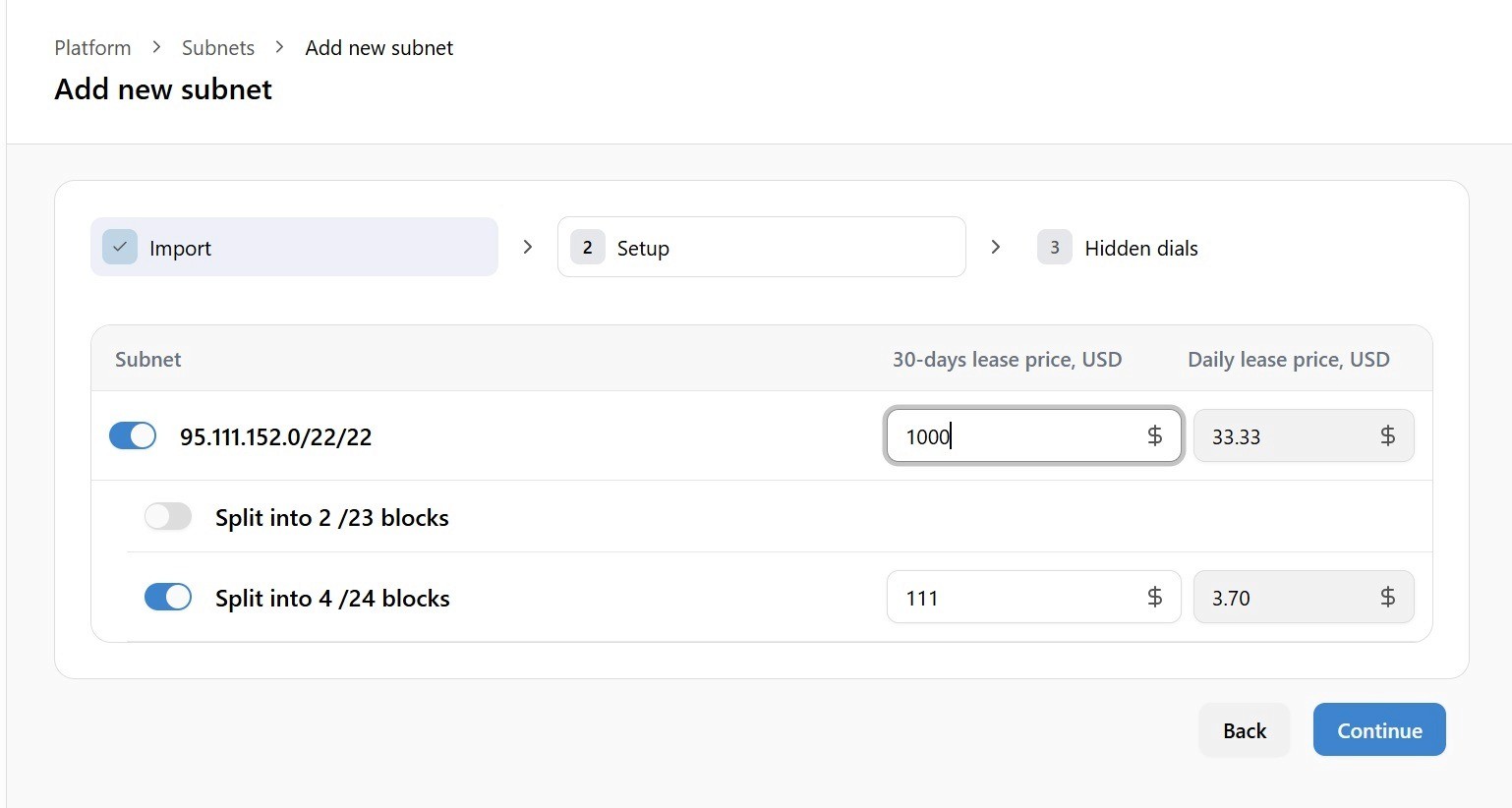
Here you can customize how your addresses are offered:
Split into smaller blocks (optional)
Divide your subnet into smaller portions
Useful if you want to lease different sizes to different clients
Set pricing
Enter your monthly price per IP address
The platform automatically calculates daily rates
Estimate how much you can earn with our IPv4 earnings calculator.
Tip: Competitive pricing in the IPv4 market typically ranges from $0.35-$0.50 per IP per month
Not sure whether to sell or lease? Read our sell vs. lease decision guide.
Step 3: Setup Options
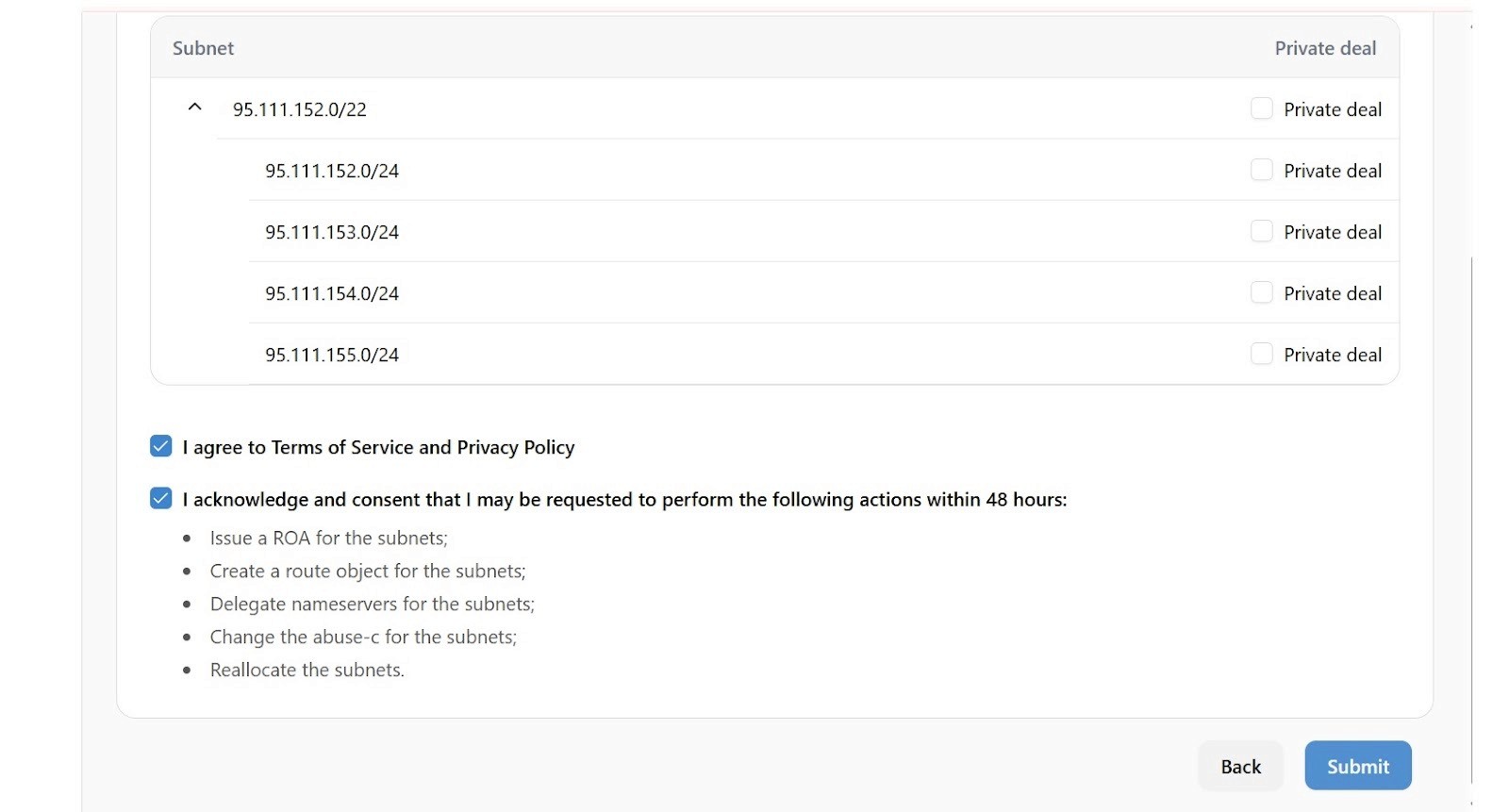
Hide from search (optional)
Set Private deal if you have a pre-arranged deal with a specific client
Private subnets won't appear in marketplace searches
Other users cannot book them, but your designated client can access them via direct link
Step 4: Review and Submit
Review your configuration
Read and accept the Terms of Service and Privacy Policy
Click Submit
Your subnet is now added and pending verification.
Part 3: Email Verification
What happens now
The IPbnb platform will send a verification email to your organization's abuse-mailbox. This proves you own the IP addresses.
Finding your abuse-mailbox
If you don't receive the verification email within a few minutes:
Open your subnet's data in the RIPE database (https://apps.db.ripe.net/db-web-ui/query)
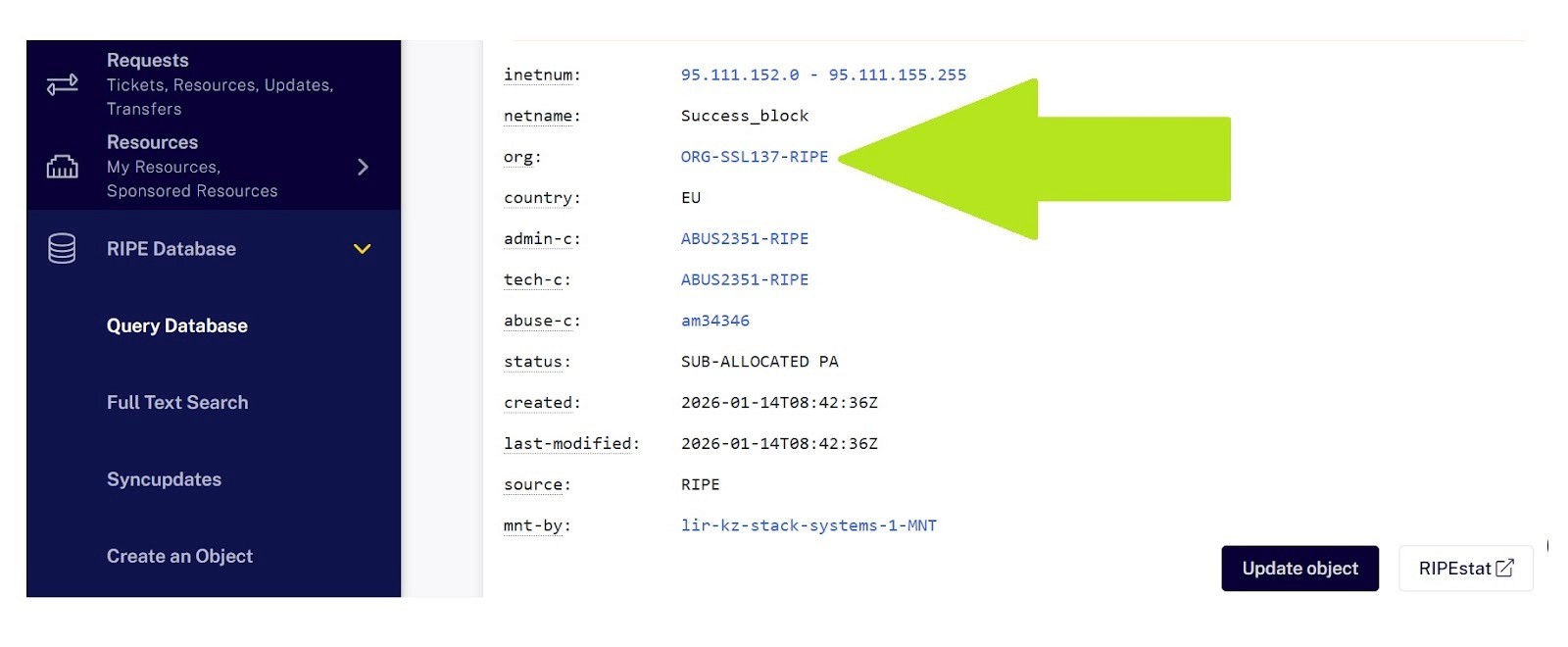
Click on the organization field value
Find the abuse-c field on the organization page
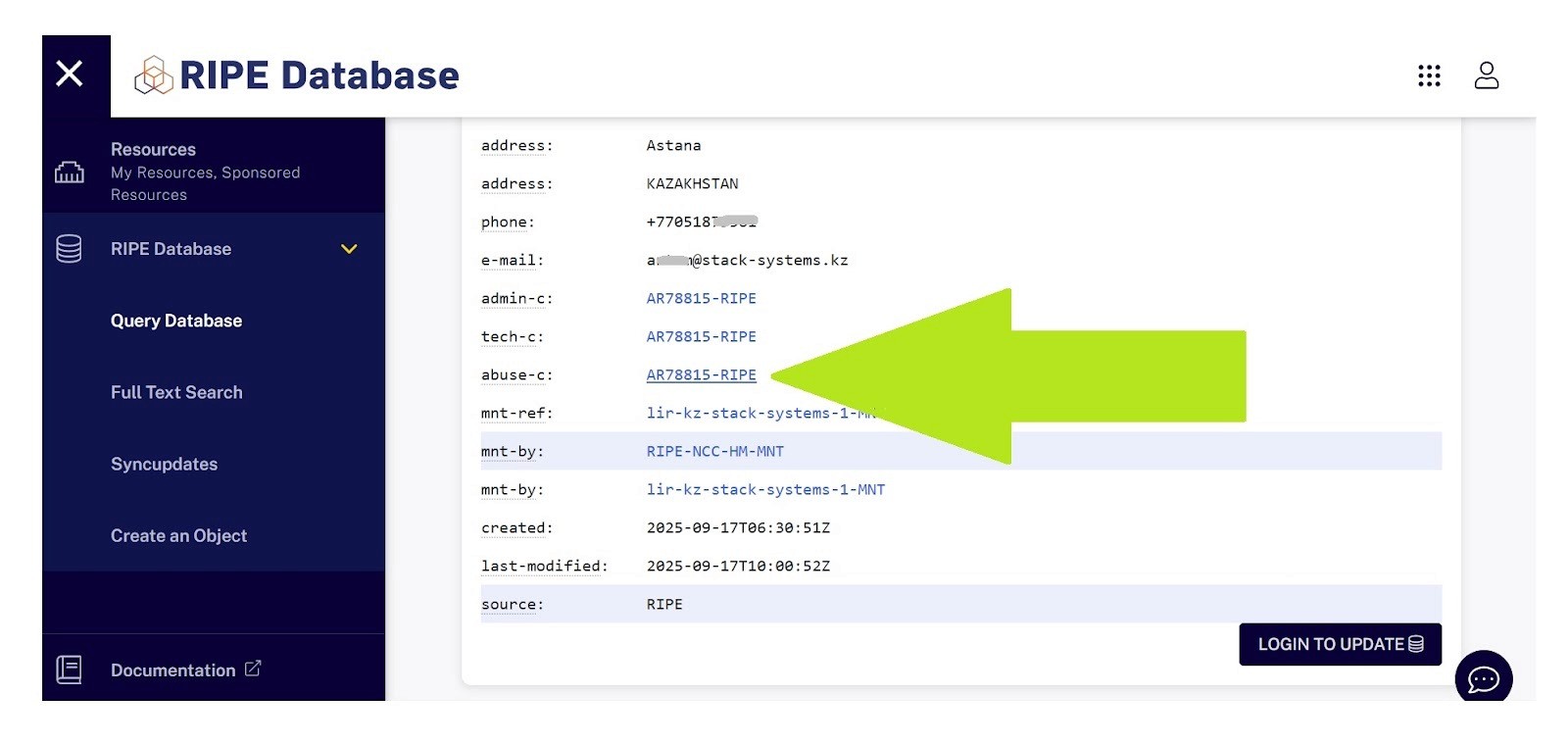
Click on it to see the full abuse contact details
Look for abuse-mailbox – this is where verification emails are sent
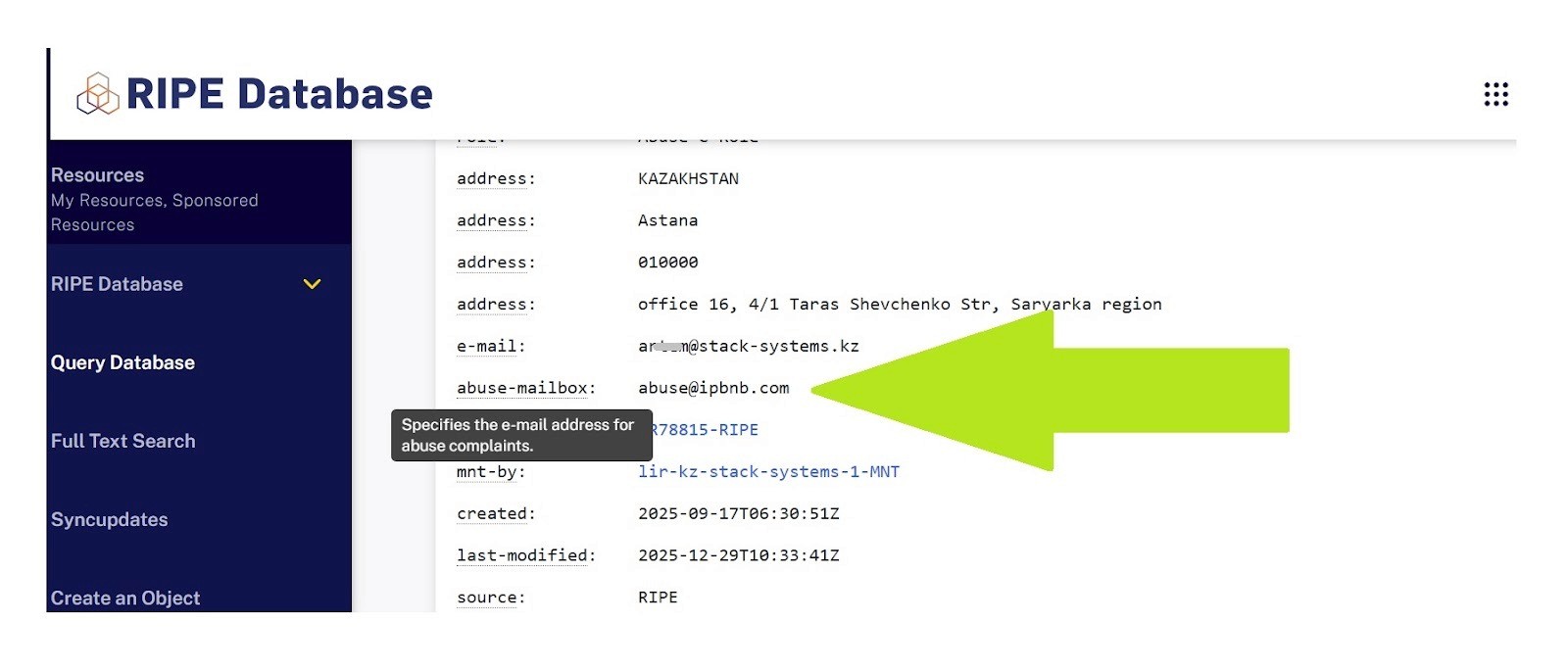
Security note: This verification step ensures that only legitimate IP address owners can list resources on IPbnb.
Completing verification
Check the abuse-mailbox inbox
Open the verification email from IPbnb
Click the verification link
You'll see a confirmation: "Network verified and ready for lease."
Post-Verification
Once verified, your subnet will appear on the IPbnb marketplace and be available for leasing.
What you can do now:
Adjust pricing
Modify subnet splits
Hide or unhide from search
Monitor lease status
Update configurations as needed
Troubleshooting
"Subnet not valid" error
Possible causes:
Status is not SUB-ALLOCATED PA (for subnets larger than /24)
Missing or incorrect abuse-c field
IPbnb not listed as maintainer (mnt-by, mnt-lower, mnt-routes, or mnt-domains depending on scenario)
Missing organization field
Subnet is still announced on the internet
Solution: Review Part 1 and ensure all requirements are met. Check the specific error message for guidance.
"Reputation check failed" error
Cause: Your IP addresses appear on one or more abuse blocklists.
Solution:
Check your IPs using reputation monitoring tools
Clean the reputation (typically takes 30 minutes to 24 hours)
If reputation is actually clean but still showing as dirty, contact our support team
Verification email not received
Possible causes:
Incorrect abuse-mailbox configuration
Email in spam folder
Organization not properly specified in RIPE database
Solution:
Verify the abuse-mailbox email address (see Part 3 above)
Check spam/junk folders
Ensure you have access to that email account
Contact support if the issue persists
Manual verification option
If automated verification fails for any reason and you cannot resolve the issue:
Contact our support team at support@ipbnb.com
Provide your subnet details
Our team will review and manually verify your subnet if all requirements are met
Need Additional Help?
Our support team is here to assist you at every step:
Email: support@ipbnb.com
Live chat: Available in your IPbnb dashboard
Average response time: Under 2 hours during business hours
Quick Reference Summary
For subnets larger than /24:
Create new inetnum object
Set status to SUB-ALLOCATED PA
Add IPbnb as abuse-c (AM34346)
Add IPbnb as mnt-by (IPbnb-MNT)
Ensure organization is specified
Clear all announcements, related objects and RPKI ROAs
For /24 subnets:
Edit existing inetnum object
Add IPbnb as abuse-c (AM34346)
Add IPbnb-MNT as mnt-lower, mnt-routes, mnt-domains
Clear all announcements, related objects and RPKI ROAs
Then for all subnets:
Add to IPbnb marketplace
Configure splits and pricing
Accept Terms of Service
Confirm ownership via email received to abuse-mailbox
Start earning from your leased addresses
Related articles